
A tour of the interface. Same views on desktop and in the browser.
New here? Start with Getting Started, then come back.
Where everything lives
| View | What it is | Docs |
|---|---|---|
Workspace /workspace |
Where the app opens: your tabs, or the new-project surface when you have none | Getting Started |
| Projects — rail button | Documents grouped by the job they belong to, with their own agent | Projects |
| Workflow Editor — workspace tab | The node canvas, with panels on every edge | Workflow Editor · Panels |
Chain Editor /chain/:workflowId? |
Linear card pipeline instead of a graph | Chain Editor |
| Chat — Chats panel | Threads open as workspace tabs; the agent edits what you have open | Chat |
| Mini-Apps — Documents panel | A form over one or more workflows | Mini Apps |
Assets /assets |
Every file your workflows touch | Assets · Sketch Editor |
Video Editor /timeline/:sequenceId |
Multi-track timeline; clips can be live workflow outputs | Video Editor |
Collections /collections |
Indexed documents for RAG | Collections · Indexing |
| Examples — workspace tab | Ready-to-run workflows, apps, storyboards, timelines, and games | Templates Gallery |
Models /models and Model Manager tab |
Find, install, and manage local and cloud models | Models Manager |
| Settings — workspace tab | API keys, folders, secrets, remote | Configuration · Providers |
The logo at the top of the left rail opens the app menu: Settings, Help, and Downloads. Settings opens as a workspace tab.
The other app pages are in the More panel on the left rail: Tutorials, Examples, Costs, Model Manager, Package Manager (development builds only), Assets, Collections, Workspaces, and Memory. Each opens as a workspace tab. More also holds Favorite Nodes, Recent Nodes, Workflow Settings, Skills, and Workspace files.
The left rail’s direct icons are Documents, Chats, Library, and Nodes.
Two extras: Mobile gives you a touch-optimized Chat, Mini-Apps, and Graph Editor, and the desktop app adds an install wizard, a system tray, and frameless mini-app windows.
Projects
A project is a name over the documents that belong to one job, such as a board, a script, a cut, or the key art. The Project selector at the left of the tab bar switches the active project, and new documents land in it.
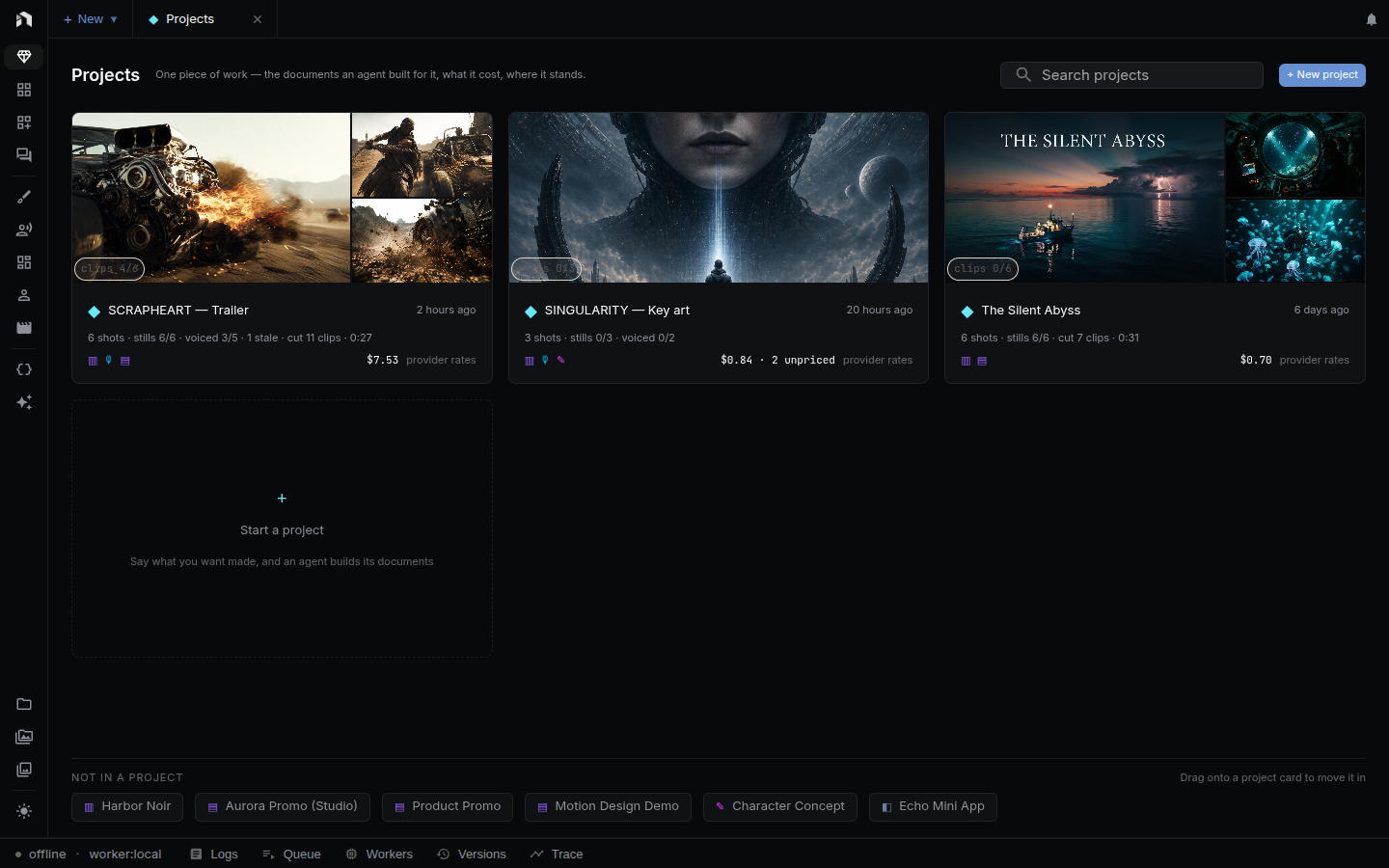
See Projects for the project list, starting a project, filing and copying documents, and archiving or deleting.
Workflow Canvas
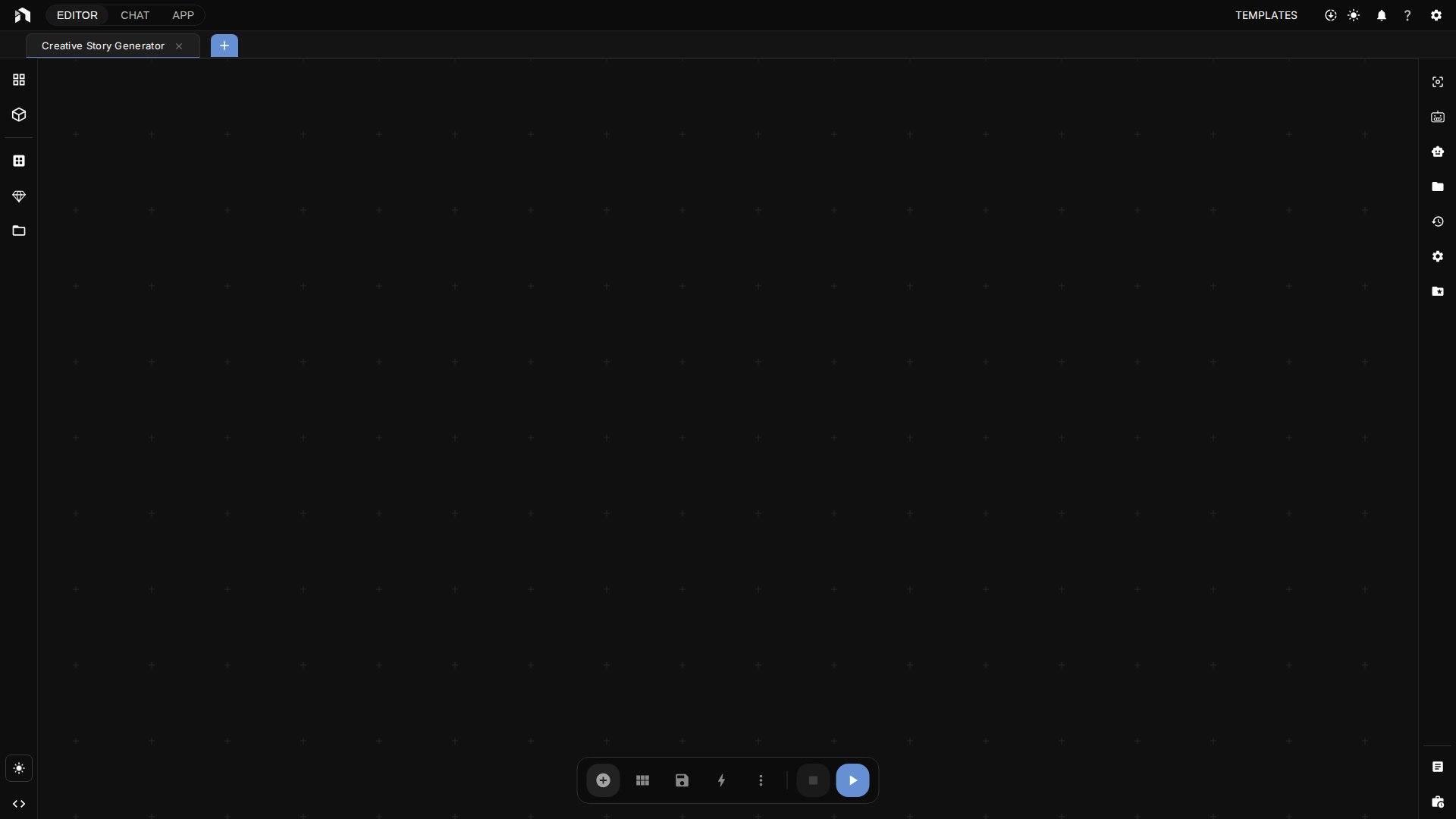
An infinite canvas. Pan by dragging empty canvas with the left mouse button (the
default on Windows and Linux) or, on macOS, by two-finger scroll or right or
middle-button drag. Scroll to zoom, and press F when you have lost the graph
off-screen. The Left-Click Drag setting under Settings → General → Canvas
switches between panning and box selection.
Add a node: press Space or double-click empty canvas. The node menu opens.
Type what you want (“generate image”), or browse the categories on the left.
Connect two nodes: drag from an output circle on the right of one node to an input circle on the left of another.
Tip: drop a connection on empty space and NodeTool offers only the nodes that accept that type.
Select a node and the Inspector on the right shows its properties, input and output slots, and help.
Chat
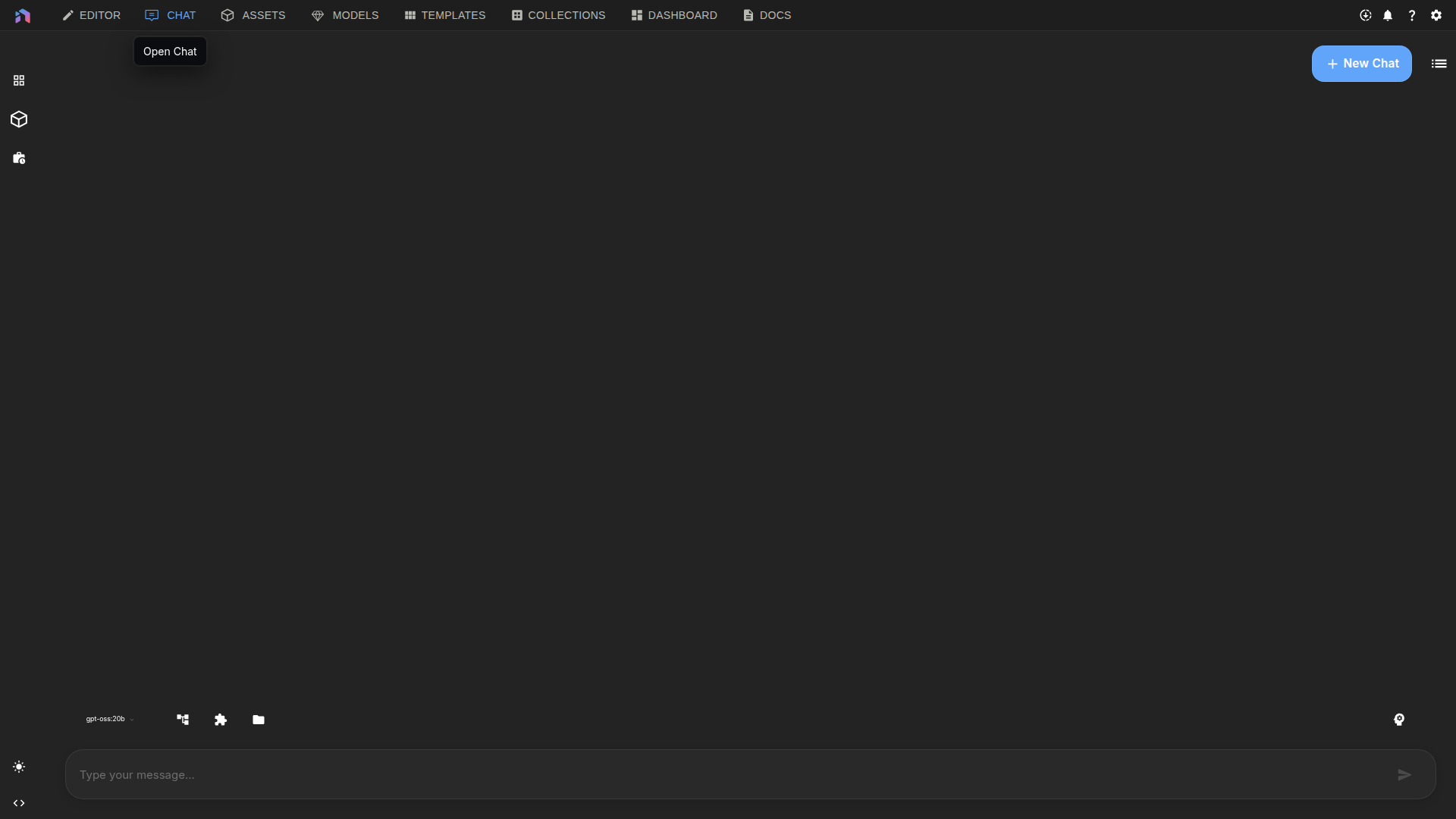
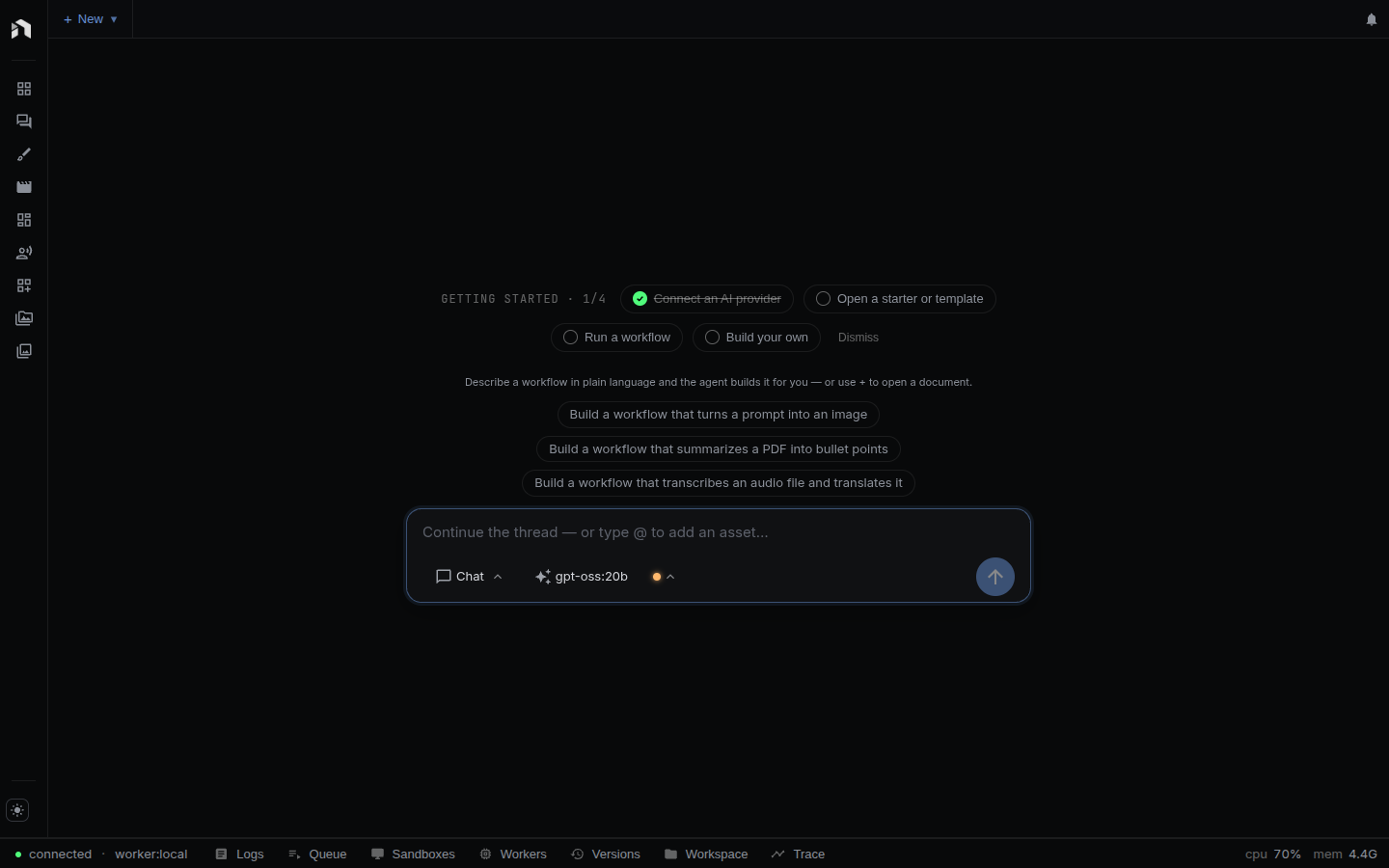
The agent, one panel over from whatever you have open. Describe a workflow and it builds one; ask for a change and it edits the open document — graph, sketch, timeline, storyboard, script, or mini app. It also runs workflows, takes image and audio and document attachments, and keeps each thread’s history separate.
On desktop, the tray icon opens a standalone chat window. Threads sync with the main app.
Mini-Apps
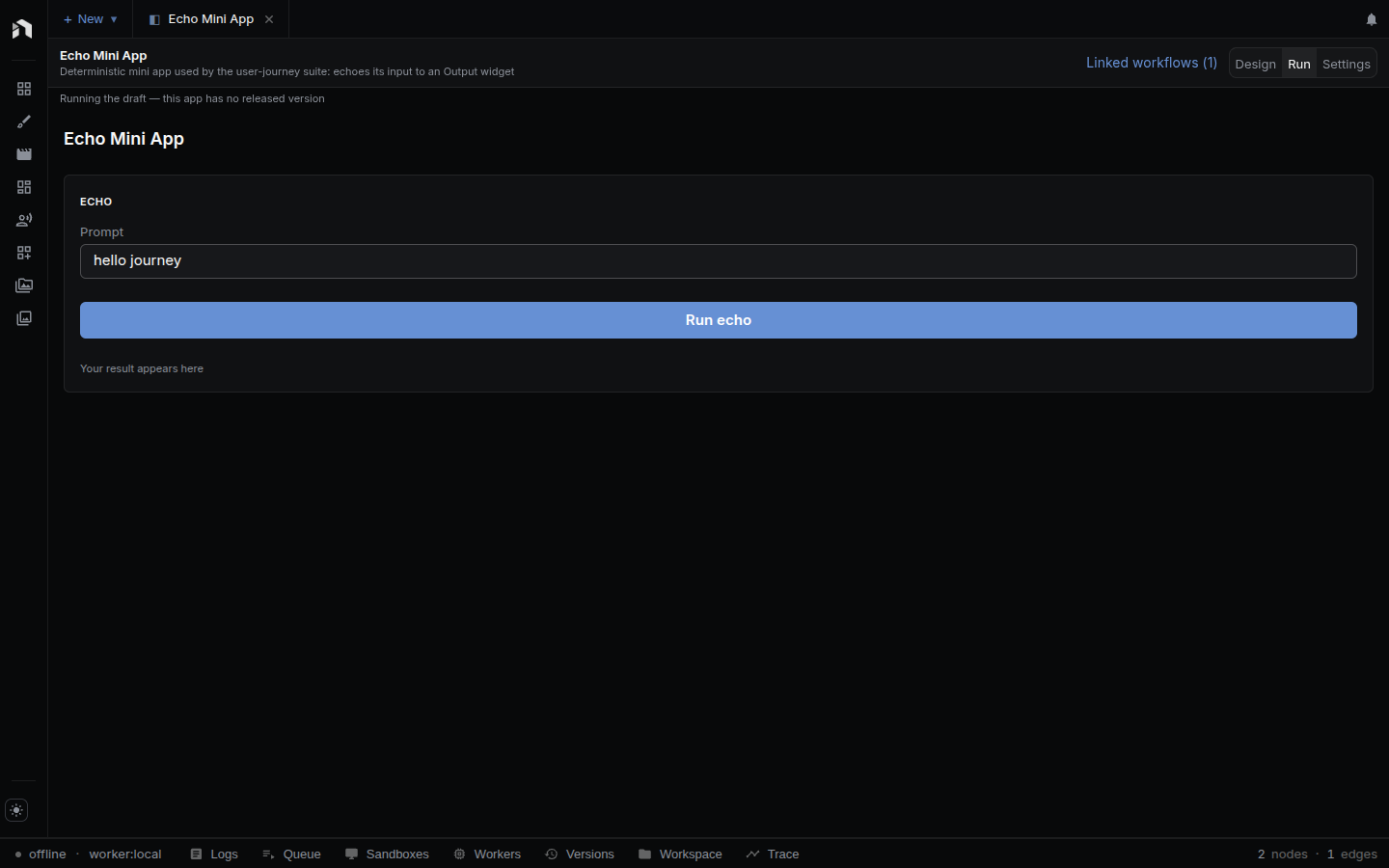
A form or dashboard over your workflows, with the graph hidden — the version you hand to someone who has never heard of NodeTool.
- Build the workflows in the editor.
- Choose + New → New app in the tab bar. To scaffold one from a graph, use the from-workflow button in the left panel’s Apps list.
- Lay out input widgets, a run button, and display widgets in the app’s tab.
- Flip the tab to Run, then publish.
The workflows stay separate resources. Linked workflows on the app tab opens one in its own tab. On desktop, right-click the tray icon to launch any app in its own window.
Assets
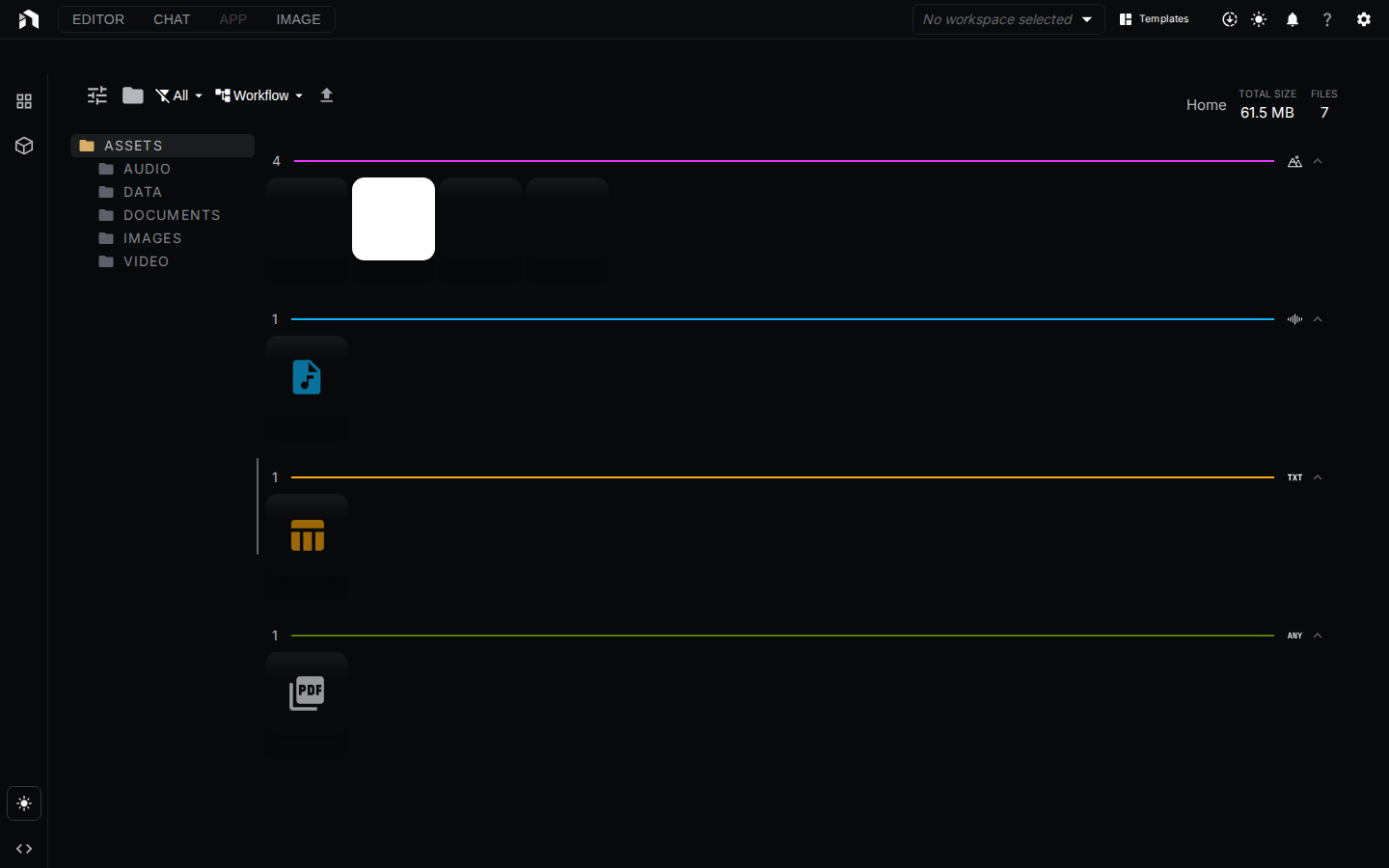
Images (PNG, JPG, GIF, WebP), audio (MP3, WAV, M4A), video (MP4, MOV, WebM), and documents (PDF, TXT, Markdown).
Drag files into the panel to upload, drag one onto the canvas to use it, click to preview. Audio previews render a WaveSurfer waveform you can scrub, in the explorer and in node results.
Panels and layout

Open documents share one tab bar: workflows, sketches, timelines, storyboards, games, apps, chats, and app pages such as Settings. Drag a tab to reorder it. The left panel, Inspector, and bottom panel each open from their own edge and resize by dragging their inner border. Open or collapsed state and size are remembered between sessions.
With nothing open, the workspace is a chat composer and a few sample prompts.
Command Menu
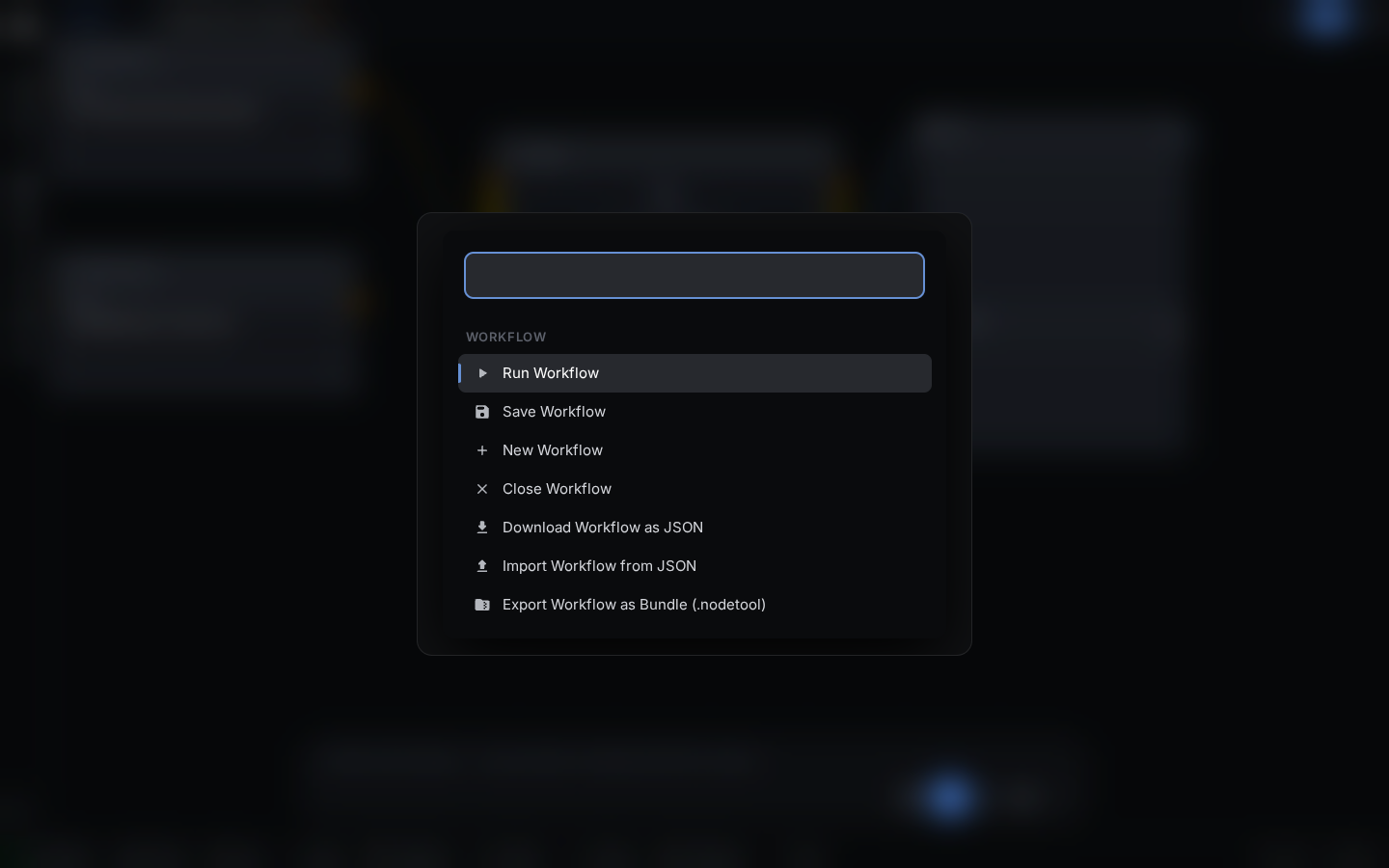
Ctrl+K / ⌘+K on any view, then start typing. It switches between your open
tabs and projects, opens app pages (Projects, Assets, Model Manager, Settings,
Studio, and the rest), creates new documents, opens your workflows by name, and
offers Keyboard Shortcuts and Report a Bug.
The view on screen adds its own group after your open tabs:
| View | Commands |
|---|---|
| Workflow | Run Entire Workflow, Save, Auto Layout, import and export as JSON or bundle, edit and align, view and zoom, panel toggles |
| Sketch | Every sketch action and tool, with its shortcut |
| Timeline | Every timeline shortcut for the active keyboard preset |
| Game | The game editor’s commands for the current dimension and play state |
| 3D model | Undo, Redo, Save, transform tools, selection, and view commands |
| Storyboard | Undo, Redo, Assemble Timeline, Show or Hide Assistant |
| Script | Undo, Redo, Send to Timeline, Export Subtitles |
| JS script | Undo, Redo, Run Script, Run Tests |
| Text file | Save, Undo, Redo, word wrap |
| Chat | New Chat, Stop Generating |
The shortcut also opens the menu while the cursor is in a code editor.
Keyboard Shortcuts
The six worth memorizing:
| Shortcut | Action |
|---|---|
Space |
Open node menu |
Ctrl/⌘ + Enter |
Run workflow |
Ctrl/⌘ + S |
Save |
Ctrl/⌘ + Z |
Undo |
F |
Fit view |
Esc |
Stop workflow |
Press Ctrl/⌘+/ for the full list inside the app.
Global
| Shortcut | Action |
|---|---|
Ctrl/⌘+K |
Command Menu |
Ctrl/⌘+, |
Settings |
Ctrl/⌘+Shift+Z |
Redo |
Ctrl/⌘+1…9 |
Switch to tab 1 to 9 |
Ctrl+PageUp / Ctrl+PageDown |
Previous or next tab |
Ctrl/⌘+T |
New workflow (desktop app) |
Ctrl/⌘+W |
Close tab (desktop app) |
Editor
| Shortcut | Action |
|---|---|
Ctrl/⌘+F |
Find in workflow |
Ctrl/⌘+D |
Duplicate |
Ctrl/⌘+G |
Group |
B |
Disable or enable selected nodes |
A |
Align nodes |
I |
Toggle Inspector |
L |
Toggle Logs panel |
Delete / Backspace |
Delete selection |
See the Workflow Editor for the complete editor list.
Chat
| Shortcut | Action |
|---|---|
Enter |
Send message |
Shift+Enter |
New line |
Esc |
Stop generation |
Next Steps
- Workflow Editor – The canvas in depth
- Editor Panels – Left, right, bottom, and floating panels
- Tips & Tricks – Shortcuts the docs bury
- Cookbook – Workflow patterns