
A project is a name over the documents that belong to one job: a storyboard, a script, a cut, key art, a mini app. It owns no content of its own. A document belongs to a project because it carries that project’s id, and the project card reads status, rendered stills, and spend back from those documents.
Projects are not workspaces. A workspace is a folder of files a run reads and writes. A project groups the documents you work on.
The Personal project
Every account has a Personal project. It is where documents land when you have not switched to a named project. You cannot archive or delete it, and it does not appear as a card in the project list.
The project list
Open Projects in the left rail to see every named project as a card, with a Search projects field and a + New project button.
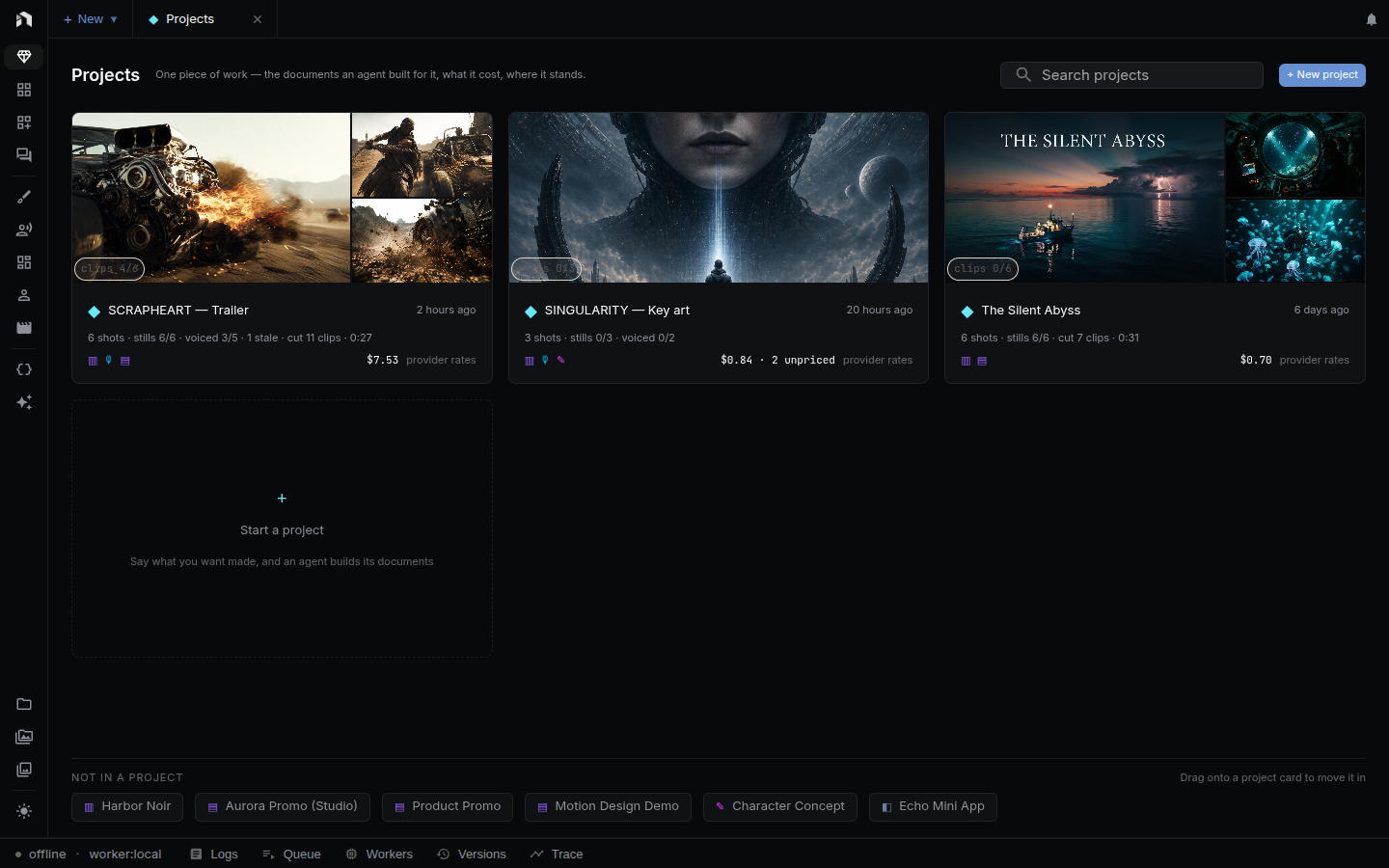
Each card shows:
- Up to three rendered stills from the project’s documents, or “No stills yet”.
- A pill over the media, such as
clips 3/8for a storyboard orcut · 0:30for a timeline. - The project name and when it last changed.
- A status line, such as
8 shots · stills 8/8 · voiced 12/14 · cut 6 clips · 0:30. - What the project has cost, labelled “provider rates”. A figure like
$4.12 · 2 unpricedmeans two calls had no price. A leading≥marks a lower bound. See Costs & Credits.
Click a card to open the project. A dashed Start a project card opens the new-project surface.
Start a project
+ New project opens the surface titled “What do you want to make?”.
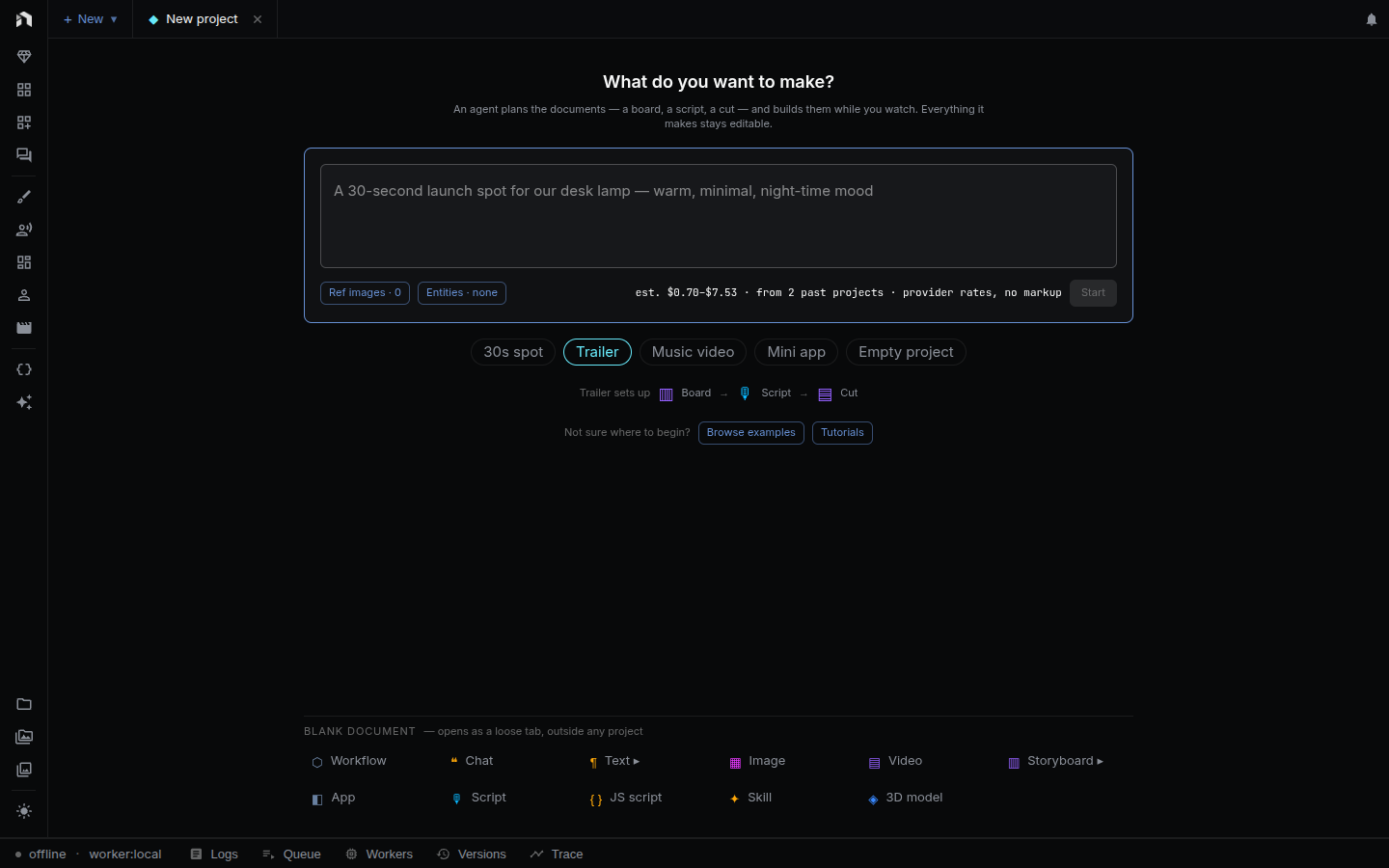
- Describe the work in the prompt. Type
/to pick a skill, or@to attach an asset or an entity. - Optionally add Reference images and pick Entities. A picked entity goes to the agent as an
entity://reference. - Pick a model with Select a model. If no language model is connected, NodeTool opens provider setup first.
- Click Send to chat.
A starter is a skill: the saved instructions a chat turn loads when it reads /<name>. The pills under the prompt list skills NodeTool ships, such as product-commercial and short-film, and skills you wrote. Skills you used on earlier projects come first, and the rest fold behind a N more pill. Picking a pill writes /<name> into the prompt, and deleting the command from the prompt clears the pill. You can also start with no skill, and then the prompt is the whole ask.
Send to chat opens a chat tab in the active project. The agent plans the documents the work needs and builds them. See Global Chat for how chat tabs work and Entities for the library.
The estimate line, for example est. $3.10–$5.80 · from 2 past projects · provider rates, no markup, appears next to the send button once at least two of your own past projects of the same kind finished with fully priced spend of $1 or more and a cut with clips. Until then there is no estimate.
Below the prompt, Start with a guided flow offers short step-by-step setups that each end in a document, and examples for apps, workflows, storyboards, timelines, sketches, 3D models, and games. See the Templates Gallery.
Switch projects
The Project selector at the left of the tab bar lists Personal and your named projects, with a search field. Choosing one opens its tabs as you left them. When a project’s tabs are grouped in the bar, the project chip at the start of the group offers Open editor home, Close group, and Switch to each other project.
Where new documents land
Every new document goes into the active project: the one shown in the selector. With no project open it goes into Personal. This holds for the + New menu, guided flows, and chats. The Documents panel lists the active project’s documents by kind: Workflows, Apps, Creative documents, and Agents & code.
File a document into a project
Documents that belong to no project appear under Not in a project at the bottom of the project list, newest first (12 at most, with a count when there are more). Drag one onto a project card to move it in. This works for storyboards, scripts, timelines, sketches, apps, games, and JavaScript scripts.
Copy a document to another project
On a document card, Copy opens a dialog with a Destination project field. The copy brings the referenced assets, entities, and supported documents with it, and the source stays unchanged. Workflows are listed but cannot be copied this way.
Archive, restore, and delete
Each card carries Archive and Delete buttons. They are absent for Personal.
- Archive hides the project from the selector and deletes nothing. Archived projects are listed under Archived projects at the end of the list, where Restore brings one back.
- Delete asks for confirmation in a dialog titled “Delete name?”. It removes the project and all of its documents, conversations, generated outputs, assets, jobs, and project files. This cannot be undone.
There is no rename control in the project list. Ask the agent to rename a project, as described next.
The agent and projects
A project’s conversations are chats filed under it, and the server can also hold one agent thread per project, created the first time it is asked for and titled with the project’s name. Agents can manage projects with four tools:
| Tool | What it does |
|---|---|
list_projects |
Lists your projects, newest first. Pass archived to list archived ones. |
search_projects |
Finds projects by name or kind. Every word must match. |
update_project |
Renames a project, changes its kind, or archives and restores it. |
delete_project |
Permanently deletes a project. It refuses the Personal project and the project the conversation belongs to. |
The agent is told to confirm with you before deleting and to prefer archiving. For the rest of the interface, see the user interface guide.