
Run Mini-Apps and chat with models from your phone or tablet. Connects to any NodeTool server — your desktop, a self-hosted instance, or NodeTool Cloud.
New here? Start on desktop with Getting Started.
Overview
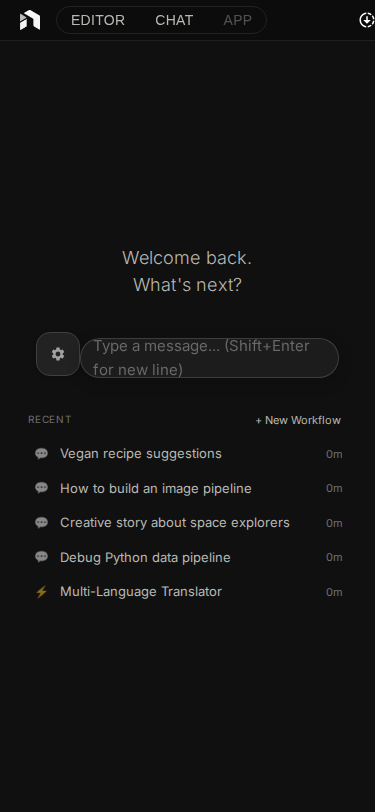
| Feature | Notes |
|---|---|
| Chat | Streaming responses across providers |
| Mini-Apps | Run your workflows with a simple UI |
| Platforms | iOS, Android, browser |
| Server | Connect to any NodeTool server |
Getting the App
From App Stores (Coming Soon)
The app will be available on:
- iOS: Apple App Store
- Android: Google Play Store
For Developers
Build and run from source:
# Clone the NodeTool repository
git clone https://github.com/nodetool-ai/nodetool.git
cd nodetool/mobile

# Install dependencies
npm install

# Start the development server
npm start
Then:
- Press
ifor iOS Simulator (macOS only) - Press
afor Android Emulator - Press
wfor web browser - Scan the QR code with Expo Go on your phone
Connecting to Your Server
The mobile app requires a running NodeTool server.
Configure Server URL
- Open the app
- Go to Settings (gear icon)
- Enter your server URL
- Tap Test Connection
- Save when successful
Server URLs by Platform
| Platform | Server URL |
|---|---|
| iOS Simulator | http://localhost:7777 |
| Android Emulator | http://10.0.2.2:7777 |
| Physical Device | http://<your-computer-ip>:7777 |
Physical devices must be on the same network as your NodeTool server.
AI Chat
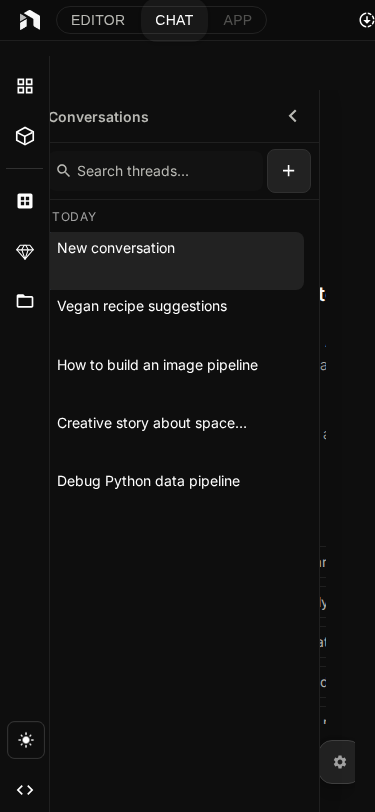
Chat with AI models from your mobile device.
Features
- Streaming responses – See text appear in real-time
- Model selection – Choose from available AI models
- Markdown rendering – Code blocks, formatting, syntax highlighting
- Stop generation – Tap stop to cancel long responses
- Multiple threads – Keep separate conversation topics
How to Chat
- Tap the Chat button on the Workflows list screen
- Select a model (tap model name)
- Type your message
- Tap Send
- Watch the AI respond in real-time
Tips
- Use the + button to start a new conversation
- Tap Stop to halt long responses
- Scroll up to review conversation history
- Switch models mid-conversation if needed
Running workflows
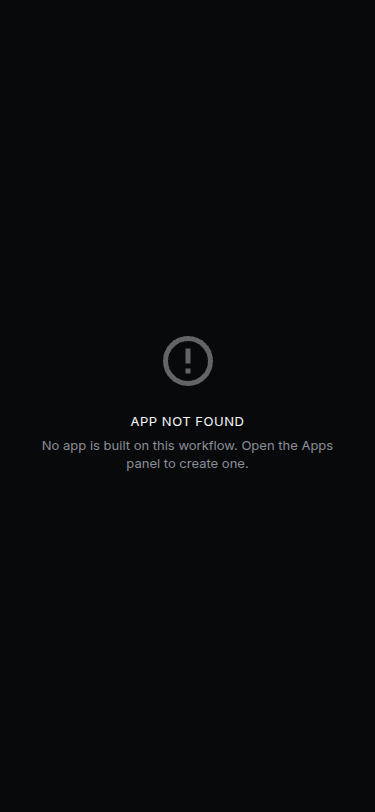
Mobile runs a workflow through a generated form. The home screen is the Workflows list (WorkflowsListScreen); tapping a workflow opens it (GraphEditorScreen) with input fields, a Run button, and results.
Mini Apps are a separate resource, authored in the desktop App Builder and stored on the server. The apps icon in the Workflows header opens the Apps browser, and tapping an app runs it on its own screen. See Mini Apps on Mobile.
Running a workflow
- Open the Workflows list (the home screen)
- Tap a workflow to open it
- Fill in the inputs (text, number, boolean toggles, image, audio, …)
- Tap Run
- View results below
Supported Input Types
| Type | Description |
|---|---|
| Text | Single or multi-line text input |
| Number | Integer or float values |
| Boolean | On/off toggle switches |
| Image | Image input |
| Audio | Audio input |
| File path | File reference |
Mobile Graph Editor
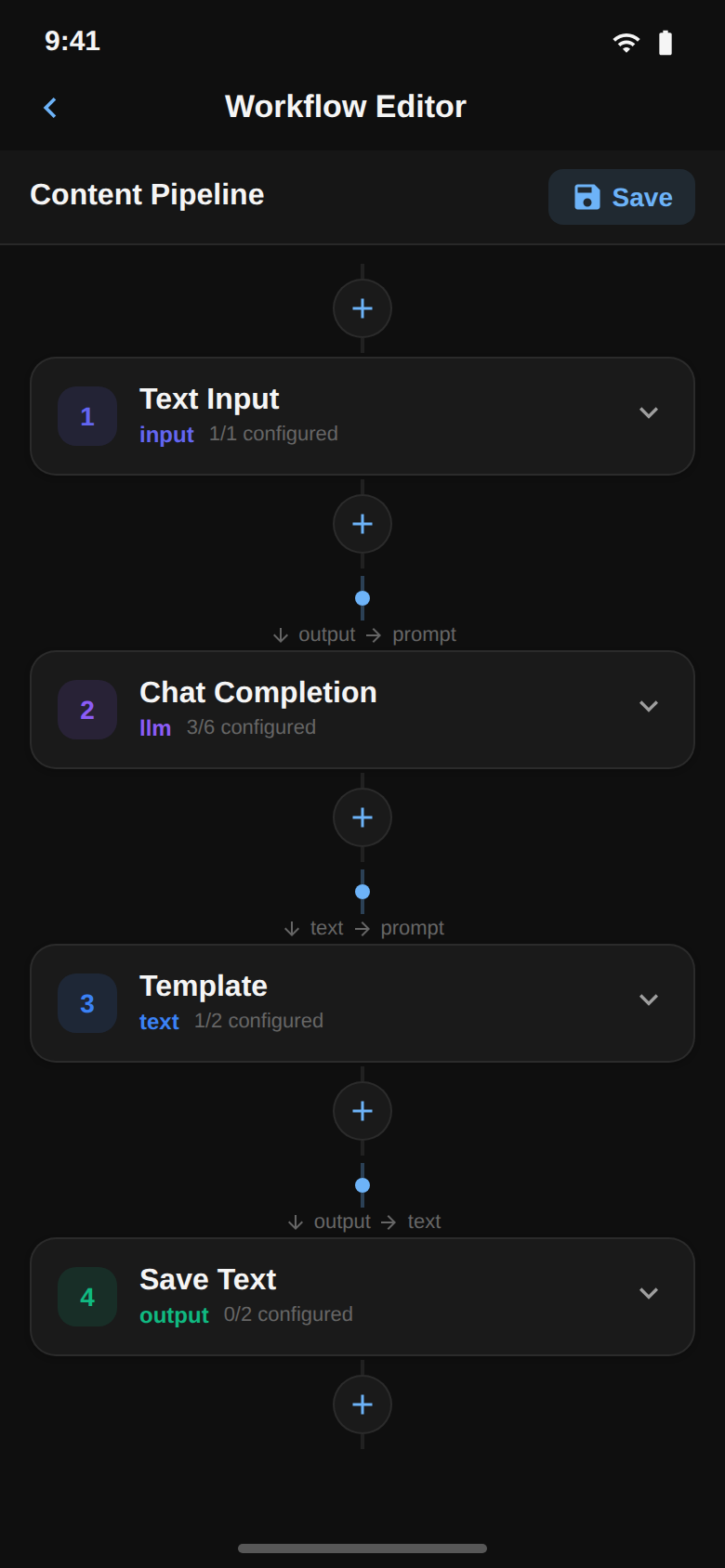
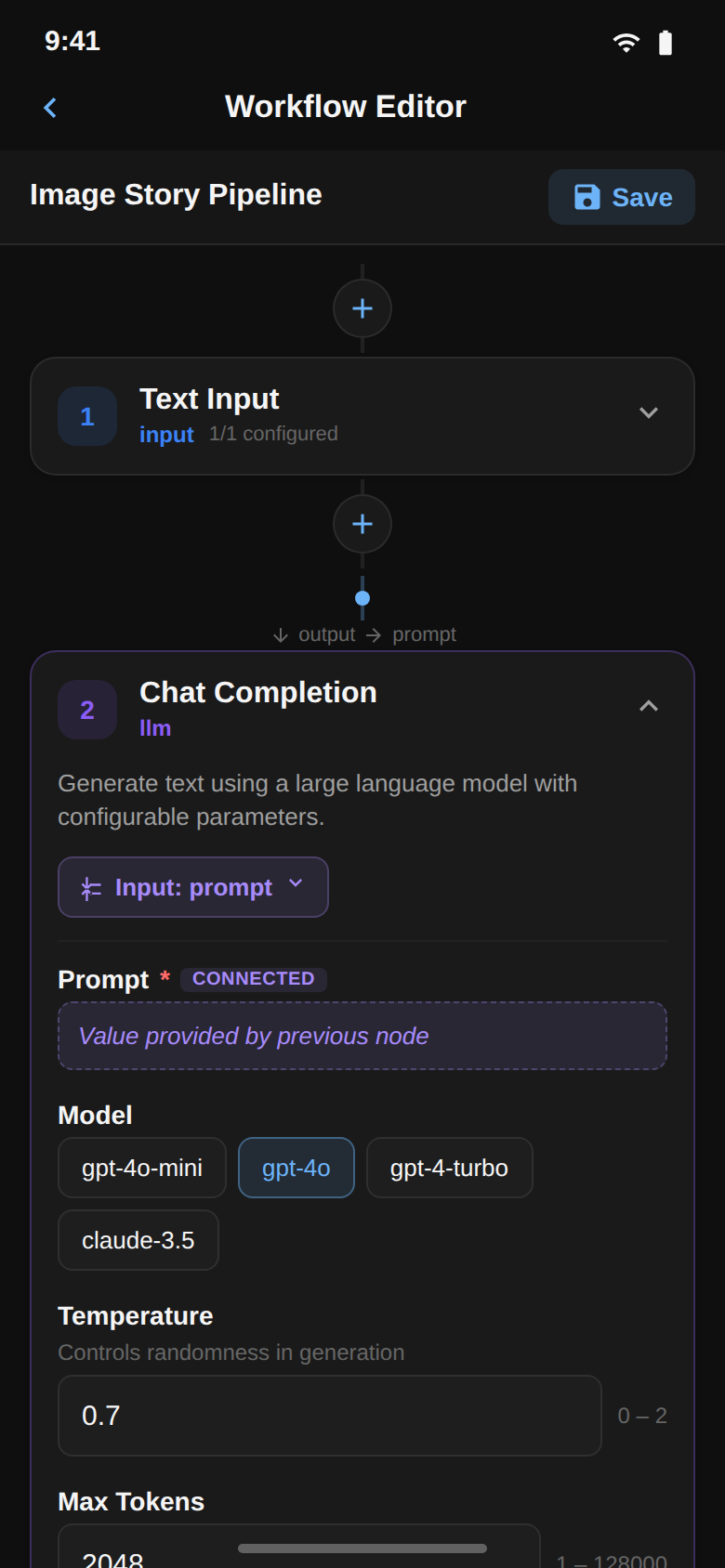
The mobile app includes a touch-friendly version of the workflow editor. Workflows render as a vertical chain of cards that you scroll through — there is no free-form pan-and-zoom canvas.
Overview
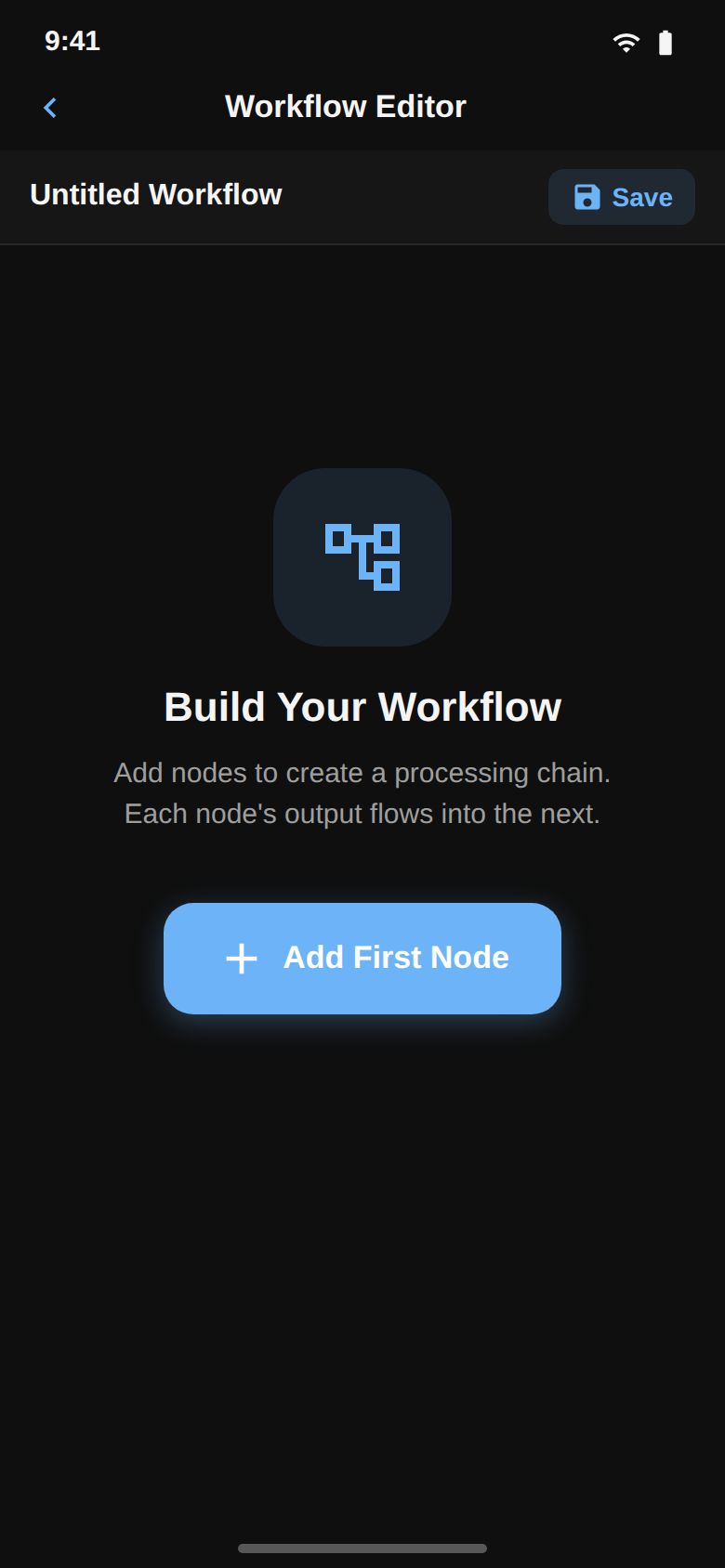
Empty State
New workflows open with a single prompt to add your first node.
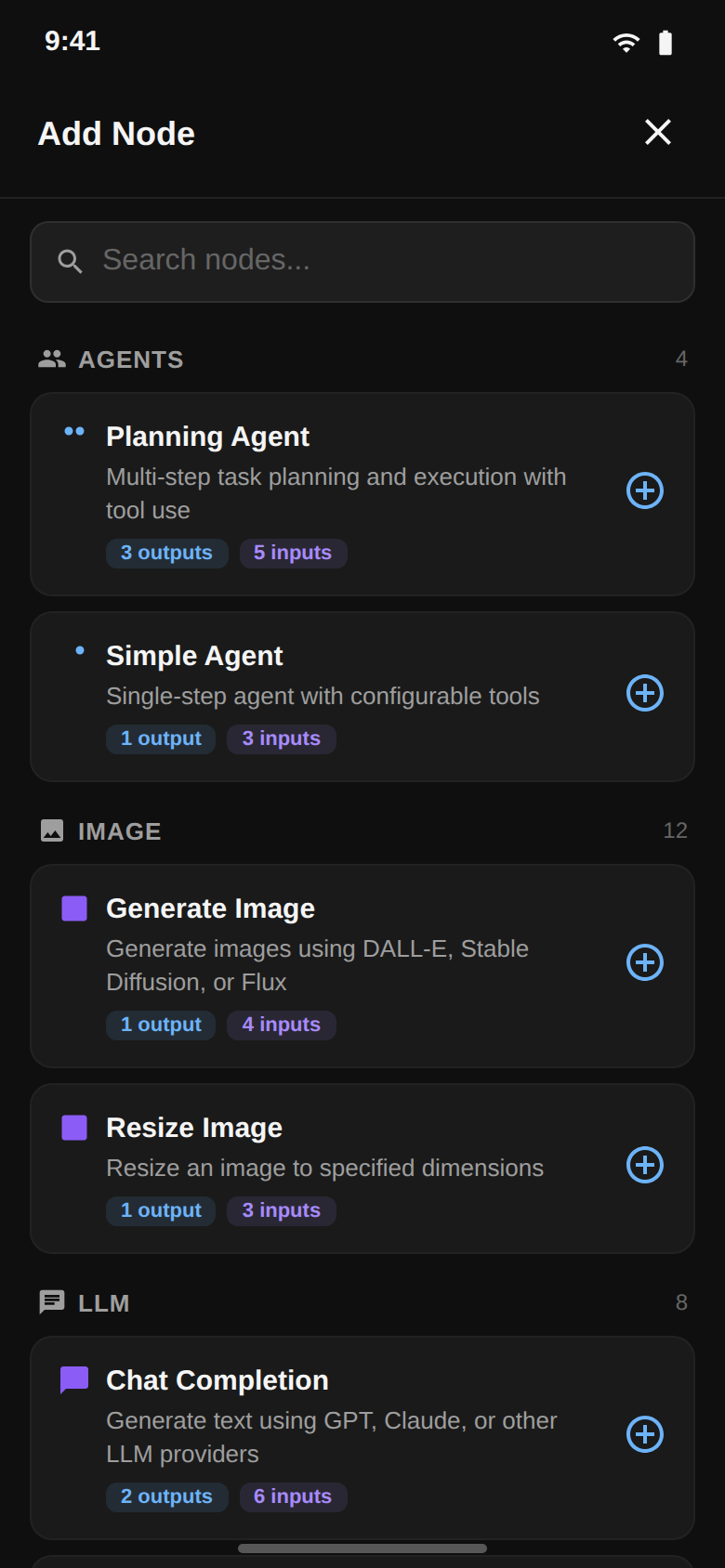
Node Picker
Tap the + button to open the full-screen node picker, which filters by input/output compatibility.
Linear Chain
Workflows render as a vertical chain of cards on mobile — easier to scroll and tap.
Interactions:
| Action | Result |
|---|---|
| Tap a card | Open its properties |
| Up / Down buttons on a card | Reorder it within the chain |
| Duplicate / Remove buttons | Duplicate or delete the node |
| + button | Add a node via the full-screen picker |
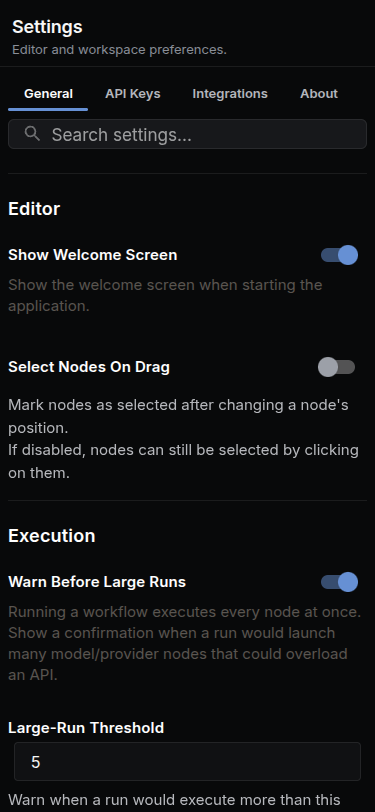
Mobile Settings
Configure the mobile app from the gear icon:
| Section | Purpose |
|---|---|
| Appearance | Light / Dark / System theme |
| Server URL + Test Connection | Which NodeTool server to talk to, with a one-tap connectivity check |
| Manage | Shortcuts to API Keys, Collections, and Jobs |
| Account | Signed-in email and Sign Out |
| About | App version, build info, links |
Mobile Language Model Selection
Tapping the model name at the top of a chat opens a two-step picker:
- Select a provider — the providers your server reports as supporting message generation.
- Select a model — the models offered by that provider.
A search box appears in either step once the list is long enough, and a back arrow returns from models to providers. There is no API-key gating, disabled styling, or docs links in this picker.
Screens
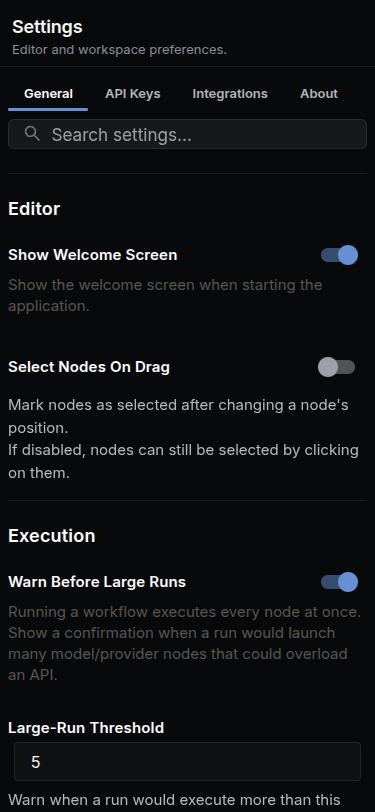
The stack registers 22 screens: Login, Workflows list, Graph editor, Settings, Chat, Threads, Language Model Selection, Apps, App, Documents, Storyboard Editor, Script Editor, Timeline Viewer, Sketch Viewer, Document Viewer, Assets, Asset Viewer, Secrets, Collections, Jobs, Job Detail, and Triggers.
Server Requirements
Your NodeTool server must be:
- Running – Start with
nodetool serve --port 7777 - Accessible – On same network as your device
- Configured – With the models you want to use
Starting the Server
# Activate environment
conda activate nodetool

# Start server
nodetool serve --port 7777
The server runs at http://localhost:7777 by default.
Firewall Settings
If connecting from a physical device, ensure:
- Port 7777 is open on your computer’s firewall
- Your router allows local network connections
- Both devices are on the same WiFi network
Troubleshooting
Cannot Connect to Server
Symptoms: “Connection failed” or timeout errors
Solutions:
- Verify the server is running
- Check the server URL in Settings
- For physical devices:
- Use your computer’s IP address (not localhost)
- Ensure same WiFi network
- Check firewall settings
Android Emulator Connection Issues
Problem: Cannot reach localhost
Solution: Use http://10.0.2.2:7777 instead of localhost:7777. This is Android’s special IP for the host machine.
App Crashes on Startup
Solutions:
- Clear app data and restart
- Check that all dependencies are installed:
npm install - Reset Metro bundler:
npm start --reset-cache
Chat Not Streaming
Symptoms: Responses appear all at once
Solutions:
- Check WebSocket connection
- Verify server is running current version
- Try a different AI model
Platform Notes
iOS
- Requires Xcode for development (macOS only)
- Use iOS Simulator for testing
- Production builds via EAS Build
Android
- Requires Android Studio for development
- Use Android Emulator for testing
- Use
10.0.2.2for localhost access
Web
- Works in any modern browser
- Good for testing without mobile device
- Run with
npm run web
Building for Production
Use Expo’s EAS Build for production apps:
# Install EAS CLI
npm install -g eas-cli

# Log in to Expo
eas login

# Build for Android
eas build --platform android --profile preview

# Build for iOS
eas build --platform ios --profile preview
For store submissions:
# Google Play Store (AAB format)
eas build --platform android --profile production

# Apple App Store
eas build --platform ios --profile production
See EAS Build Documentation for details.
Related Topics
- Getting Started – Desktop setup and first workflow
- User Interface – Full UI guide
- Mini Apps – What apps are and how they run
- Mini Apps on Mobile – Opening and running an app on the phone
- Chat & Agents – Chat features in detail
- API Reference – Server API documentation