
Download, install, open, connect a provider. There is no setup wizard, but NodeTool can’t run an agent or generate an image until it has a model to call, so connecting a provider is part of installing. The larger pieces some workflows need, such as local AI models, download later and only when you actually use them.
The short version
- Download NodeTool from nodetool.ai
- Run the installer
- Open NodeTool
- Connect an AI provider — see below
The file you get is a .dmg on macOS, an .exe on Windows, and an AppImage on
Linux. Exact steps for each are below: macOS, Windows,
Linux.
macOS
- Download the
.dmgfrom nodetool.ai. There are two builds: one for Apple Silicon (arm64) and one for Intel (x64). To see which Mac you have, open the Apple menu → About This Mac. - Open the downloaded file and drag Nodetool into your Applications folder.
- Open it from Applications. Released builds are signed and approved by Apple, so macOS should not warn you or block the first launch.
- If a workflow records audio or video, macOS asks once for microphone or camera permission. Approve it or those nodes won’t work.
On Apple Silicon Macs with macOS 14 or newer, local models can run on Apple’s MLX framework. MLX is an optional Python pack: install MLX from Tools → Package Manager → Python nodes, which sets up Python first if it is missing. Intel Macs and Macs on macOS 13 or older cannot run MLX or the HuggingFace pack. They run cloud providers, Ollama, and llama.cpp.
Windows
- Download the installer (
Nodetool-Setup-<version>.exe) from nodetool.ai. It is built for 64-bit x64 Windows. - Run it. You choose where it installs. It then adds a desktop shortcut and opens NodeTool when it finishes.
- Approve the Windows firewall prompt. NodeTool runs a small server on your own machine (on port 7777) that the app window talks to. Nothing is exposed to the internet.
Both the installer and the app are code-signed. To run local models on your graphics card, see GPU requirements.
Linux
- Download the AppImage from nodetool.ai. It is the only Linux package NodeTool ships today.
- Mark it executable and run it:
chmod +x Nodetool-*.AppImage ./Nodetool-*.AppImage - There is no install step. An AppImage is a single self-contained file that runs wherever you put it.
Prefer Flatpak? Unsigned builds are produced from every change to the project. See Flatpak CI Builds. They are not on Flathub yet.
Connect an AI provider
A fresh install has no model behind it. Agents, chat, image and video generation, speech — every one of them calls a model, and until NodeTool has somewhere to call, those nodes fail with a missing-provider error. Do this before your first workflow.
Two ways to get one, and you can mix them:
A cloud provider (fastest). Open Settings → Models & Providers and connect one. Some providers sign you in without a key: a Claude subscription (desktop app only), a ChatGPT account (Codex), and Hugging Face. For the rest, paste an API key: a password-like string you create on that company’s website, which lets NodeTool use your account there.
- OpenAI — chat, images, video, speech, transcription, embeddings. The broadest single key.
- Anthropic — Claude chat models, the usual choice for agents. Text only.
- Google Gemini — chat, images, Veo video, speech, transcription, embeddings.
- FAL or Replicate — image, video, and audio generation across many models.
Note: NodeTool is bring-your-own-key. It never marks up a provider’s price, and the provider bills you directly.
Keys are stored encrypted (AES-256-GCM) in a local
database, not in a plaintext config file. The encryption key lives in your
operating system’s keychain (macOS Keychain, Windows Credential Manager, or the
Linux Secret Service). The SECRETS_MASTER_KEY environment variable overrides
it.
Local models (no key, no bill). Install Ollama, pull a
model with ollama pull <model>, and it shows up in NodeTool automatically.
This covers chat and embeddings, so agents work. Image and video generation
mostly need either a cloud provider or a graphics card and the local model
downloads described below.
Wherever a missing provider blocks you — a model dropdown, a node warning, the getting-started checklist — NodeTool opens the connect dialog in place, so you don’t have to hunt through settings.
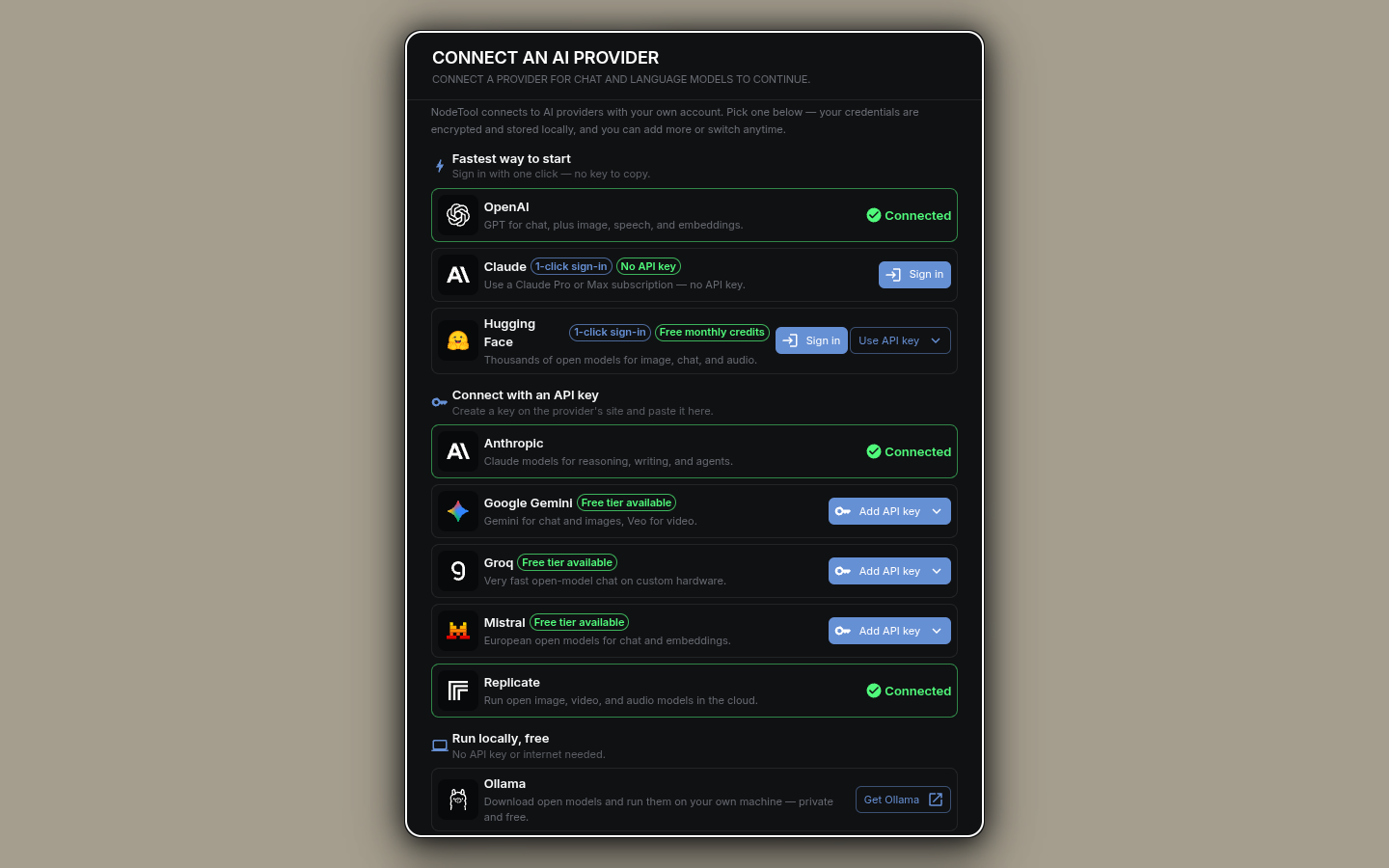
Each connected provider carries a Test button that calls the provider to confirm the key still works. From the terminal:
nodetool secrets store OPENAI_API_KEY   # prompts for the value, stores it encrypted
nodetool secrets list                   # list stored keys (values are never shown)
nodetool secrets get OPENAI_API_KEY     # print one stored value
The full list of 30+ providers, what each one can generate, and which key it needs is in Providers.
What downloads later
The app itself is small. NodeTool starts without a Python environment. These pieces arrive only when you install them:
- Python and Conda. Some nodes are written in Python rather than JavaScript, and they need this to run. Install it from Tools → Package Manager → Engines & tools, or accept the Install required runtimes prompt that appears when a workflow contains nodes that need a runtime. The prompt installs runtimes only. A workflow with no Python nodes never needs Python. Allow several GB of disk space.
- Python node packs. HuggingFace, MLX, and Wan2GP nodes come in packs you install from Tools → Package Manager → Python nodes. Installing a pack sets up Python first if it is missing. The HuggingFace pack downloads a PyTorch build for your graphics card, which takes several GB. See Node Packs.
- In-process model runners. llama.cpp (the
llama.cpp localprovider) and whisper.cpp run inside NodeTool. Install them from Package Manager → Engines & tools. - Ollama is a separate program. Download it from
ollama.com and keep it running. NodeTool does not ship
or start it. A
llama-serveryou run yourself connects throughLLAMA_CPP_URL. See Providers. - The models themselves. Several GB each, depending on the model. Download them from Tools → Model Manager.
No graphics card, or no room for the downloads? Use a cloud provider with your own API key instead — see Connect an AI provider above, Providers, and Models & Providers.
What different tasks need
What matters is the kind of hardware you have, not the exact model of graphics card:
| Your hardware | What runs the model | Good for |
|---|---|---|
| NVIDIA graphics card | HuggingFace pack (PyTorch), llama.cpp/GGUF, Ollama | Making images and video, running compressed language models |
| AMD graphics card (Linux) | HuggingFace pack (PyTorch ROCm build), llama.cpp, Ollama | Same as NVIDIA |
| Apple Silicon Mac | MLX pack, HuggingFace pack, llama.cpp, Ollama | Language models, image understanding, Flux |
| No graphics card, CPU only | llama.cpp, Transformers.js, Ollama | Works, but slowly |
| Anything, using an online service | The provider’s servers | Every kind of task, nothing to download |
Supported Models compares all of them.
GPU requirements
Python nodes run on PyTorch 2.14. Which PyTorch build you get, and so which cards and drivers work, depends on how you installed Python nodes. Rows marked inferred follow from PyTorch’s published platform support and have not been tested on every card.
Desktop app. Before it installs the HuggingFace or MLX pack, the app detects your GPU and picks the matching PyTorch build:
| Hardware | Build the app installs |
|---|---|
| NVIDIA Turing (RTX 20xx, GTX 16xx) or newer | CUDA 12.8, which needs driver 570 or newer |
| NVIDIA Maxwell, Pascal (GTX 10xx) or Volta | CUDA 12.6 (inferred) |
| NVIDIA Kepler and older | CPU. The app logs that the card is too old |
| AMD on Linux, RDNA 2 or newer (RX 6000 and later) | ROCm 7.2 (inferred) |
| AMD on Linux, older cards (Polaris, Vega, RDNA 1) | CPU, with a warning |
| AMD on Windows | CPU, with a warning. PyTorch reaches these cards only through DirectML, which has no 2.14 build. llama.cpp still uses the card through Vulkan |
| Intel Arc and Intel integrated graphics (Windows, Linux) | Intel XPU (inferred) |
| Apple Silicon, macOS 14 or newer | The PyPI build, which uses Metal (MPS) |
| Intel Mac, or a Mac on macOS 13 or older | None. The HuggingFace and MLX packs are hidden, because PyTorch 2.14 and MLX publish no build for them |
If PyTorch publishes no 2.14 build for the chosen GPU index, the app installs the CPU build instead and logs a warning. Python nodes then run on the CPU. After a driver update, install the pack again to retry the GPU build. Detection runs on every install.
install.sh. On Linux, install.sh
lets uv pick the CUDA, ROCm or Intel XPU build from the installed driver
(--torch-backend auto). On macOS it installs the PyPI build, which needs
Apple Silicon and macOS 14 or newer.
Manual pip install torch. The PyPI build on Linux uses CUDA 13.0, which
needs driver 580 or newer and a Turing or newer card. On a GTX 10xx or with an
older driver, Python nodes fail with a CUDA error. Install a CUDA 12.6 or 12.8
build from pytorch.org instead, or
set NODETOOL_TORCH_DEVICE to cpu. PyPI ships only a CPU build for Windows,
so a GPU build on Windows always comes from pytorch.org.
Docker worker image. The worker image installs PyPI’s CUDA 13.0 build, so the GPU host needs NVIDIA driver 580 or newer. See Worker deployment.
llama.cpp and Ollama do not use PyTorch, so these limits do not apply to them. On a card PyTorch cannot use, they still run on the GPU.
Rough VRAM (or unified memory on a Mac) per model family:
| Model family | Memory |
|---|---|
| 7–8B language model, 4-bit GGUF or MLX | 6–8 GB |
| SDXL | 8–12 GB |
| Flux, full precision | 24 GB or more; less with CPU offload, but slower |
| Wan video models | 8 GB and up, depending on resolution and length |
The Model Manager’s Get Started tab estimates fit for your machine. To pick
which GPU Python nodes use, set NODETOOL_TORCH_DEVICE in Settings to
cuda, cuda:1 (a second card), mps, or cpu. See
Configuration.
Other ways to install
If you don’t want the desktop app:
Command line only — install the nodetool command without the desktop app.
With npm (Node.js 22 or newer):
npm install -g @nodetool-ai/cli
nodetool serve   # API on 127.0.0.1:7777; use --host and --port to change
This runs every TypeScript node. Python nodes need a Python environment, which you set up yourself: see Python nodes without the desktop app. See the CLI Reference.
On your own server (Docker) — run NodeTool’s backend on your machine or a remote host:
cp .env.example .env
docker compose up -d
See Self-Hosted Deployment for logins, upgrades, and remote hosts, or the Deployment Guide for the full picture.
From source code — for people who want to change NodeTool itself:
nvm use
npm install
npm run build:packages
npm run dev
Needs the Node.js version in .nvmrc. For Python nodes, set up a Python
environment as described next.
Python nodes without the desktop app
The desktop app manages Python for you. With the npm CLI or a source checkout,
you create the environment yourself. The server starts Python nodes
by running python -m nodetool.worker --stdio, so nodetool-core and every
pack you want must be installed in the interpreter it picks.
On Linux and macOS,
install.sh
does steps 1 to 3 below for you. It creates a Python 3.11 environment with
ffmpeg in ~/.local/share/nodetool/conda_env and installs nodetool-core plus the packs you name with --pack
(huggingface, mlx, or wan2gp):
curl -fsSL https://raw.githubusercontent.com/nodetool-ai/nodetool/main/install.sh | bash -s -- -y --pack huggingface
It prints the nodetool serve command to run at the end. On Linux the server
finds that environment by itself. On macOS it does not search there, so always
start the server with NODETOOL_PYTHON set as the script shows.
To set up the environment by hand:
-
Create an environment named
nodetoolwith Python 3.11 or newer:conda create -n nodetool python=3.11 ffmpeg -c conda-forge conda activate nodetoolA plain
python -m venvworks too. Installffmpegseparately then. - Install PyTorch for your hardware before any pack that needs it. On Linux
and macOS,
pip install torchgets the CUDA 13.0 build or the Apple Silicon build. On Windows, or for a ROCm or other CUDA build, use the command from pytorch.org/get-started for PyTorch 2.14. Check GPU requirements first. -
Install
nodetool-coreand the packs from PyPI in one command, so pip resolves their shared dependencies together:pip install nodetool-core nodetool-huggingface # add nodetool-mlx on Apple Siliconnodetool-wan2gpis the Wan2GP pack. See Wan2GP. -
Start the server so it finds that interpreter:
NODETOOL_PYTHON="$CONDA_PREFIX/bin/python" nodetool serveOn Windows,
NODETOOL_PYTHONis%CONDA_PREFIX%\python.exe. In a venv, useNODETOOL_PYTHON="$VIRTUAL_ENV/bin/python", or%VIRTUAL_ENV%\Scripts\python.exeon Windows. With the conda environment namednodetoolactive, the server finds it without the variable.
The server tries NODETOOL_PYTHON first. Without it, it uses the active conda
environment when that environment is named nodetool or conda_env, then the
desktop app’s environment and nodetool environments under miniconda3 or
anaconda3. The full order is in Configuration.
To check the environment, run python -c "import nodetool.worker" in it. With
no match, the server log says Python not found — Python nodes will not be
available. When the worker fails to start, the error names the interpreter it
tried.
If installing goes wrong
Most install problems are one of these. For problems that show up once NodeTool is running, see Troubleshooting.
A node says no provider is configured — nothing is connected yet, or the key you pasted is for a provider that can’t do what the node asks (Anthropic makes no images, FAL runs no chat). Connect one in Settings → Models & Providers and press Test; the capability matrix shows which provider covers which modality.
The Python install fails — it needs an internet connection and free disk space. Retry from Tools → Package Manager.
NodeTool doesn’t see my graphics card — on NVIDIA, open a terminal and run
nvidia-smi. That is the same check NodeTool runs for Help → System
Information, and it shows the driver version. Compare it with
GPU requirements. On a card PyTorch does not support,
set NODETOOL_TORCH_DEVICE to cpu so Python nodes run on the CPU, or use an
online service instead.
A model download stalls or fails — usually disk space or network. Model Download Troubleshooting covers disk space, resuming, and HuggingFace download limits.
The app can’t reach its own server — approve the firewall prompt for NodeTool’s local server on port 7777. Running the Docker version instead? See Deployment Troubleshooting.
Still stuck — ask on Discord or open a GitHub Issue. Include your operating system and your NodeTool version (Help → System Information).
Uninstalling
- Windows — Settings → Apps → Nodetool → Uninstall.
- macOS — drag Nodetool from Applications to the Trash.
- Linux — delete the AppImage file.
Your settings live in ~/.config/nodetool/settings.yaml (macOS and Linux) or
%APPDATA%\nodetool\settings.yaml (Windows). Delete that folder too if you want
to start completely fresh.