
Use the shared widget tree for persistent HUD elements. Both dimensions use the same layout model. Document screen definitions are accepted by validation, but the shipped runtime and renderer do not implement their menu behavior.
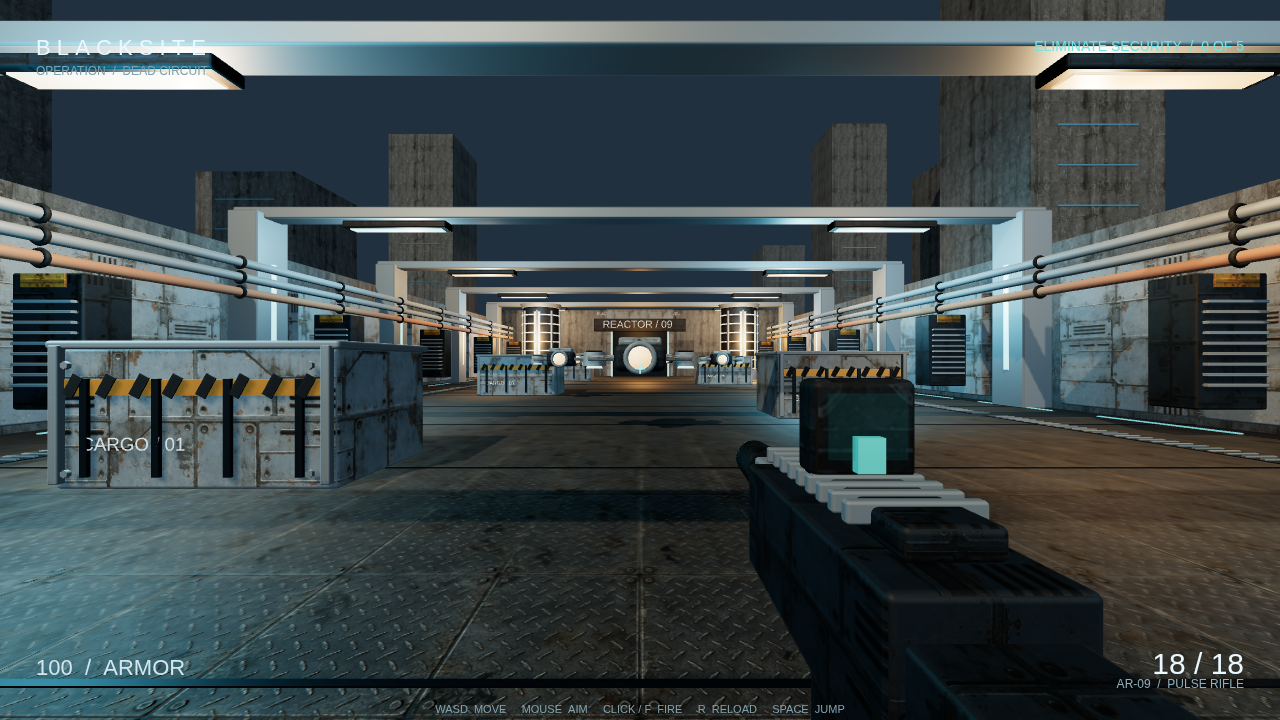
BLACKSITE demonstrates gameplay information positioned around the viewport. Its screenshot does not imply a dedicated visual HUD editor. Capture source.
Lay out a HUD
Document ui appears in every scene. Scene ui draws above it. A tree contains panels, text, images, bars, buttons, stacks, and grids. A child follows its parent in the node list, and only panels, stacks, and grids contain children.
Anchor positions use 0–1 coordinates within the parent rectangle. The pivot selects the point on the widget placed at the anchor. Offsets are HUD pixels. For a top-right counter, use anchor and pivot {x: 1, y: 0} and an inward offset. Safe-area handling keeps root widgets away from device cutouts.
2D HUD dimensions come from the camera and pixels-per-unit. 3D uses presentation.hudWidth and hudHeight, stretched over the viewport. Prepare fonts and reference their logical binding IDs for repeatable typography.
An image widget needs an image asset and a renderer path that resolves it. Use image widgets in 2D. Although 3D image bindings now exist for preparation, the standard 3D HUD host does not supply a completed image-widget rendering path. Text, panels, bars, and buttons avoid that limitation.
Connect gameplay
A bar can read an entity’s health or use explicit value and maximum fields. Scripts update widgets with {kind: "ui", id, text?, value?, max?, visible?}. These overrides last until the scene changes and survive snapshots. A missing widget or an incompatible property fails the step.
A button presses a declared input action, so scripts receive the same pressed and justPressed values as keyboard input. With focus navigation enabled, the gamepad D-pad and button 0 operate visible buttons. In 3D, the pointer must be released from camera capture to click a HUD button.
Legacy script hud labels remain available and draw above the widget tree.
Screen definitions are schema-only
The document screens contract describes title, pause, settings, game-over, and custom screens, plus transitions driven by actions, events, or a win. The current runtime, renderer, editor, and CLI do not consume that contract. Declaring it does not display a menu, pause simulation, run transitions, or generate settings controls.
Use working HUD widgets and authored scene behavior for visible game instructions and buttons. Do not rely on screen definitions to control gameplay or persistence.
There is no built-in localization catalog in the shipped document schema. Author translated text deliberately, use suitable fonts, and check long labels at the intended viewport sizes.