
Cut a sequence on a multi-track timeline, bind any workflow to a clip, and generate the footage in place. NodeTool’s Video Editor is a non-linear editor where clips can be imported media or live workflow outputs that regenerate when you change their parameters.
Quick Access: Open a timeline at
/timeline/:sequenceId, or add a timeline tab from the workspace. Create a new sequence from the timeline list panel or the Asset Explorer.
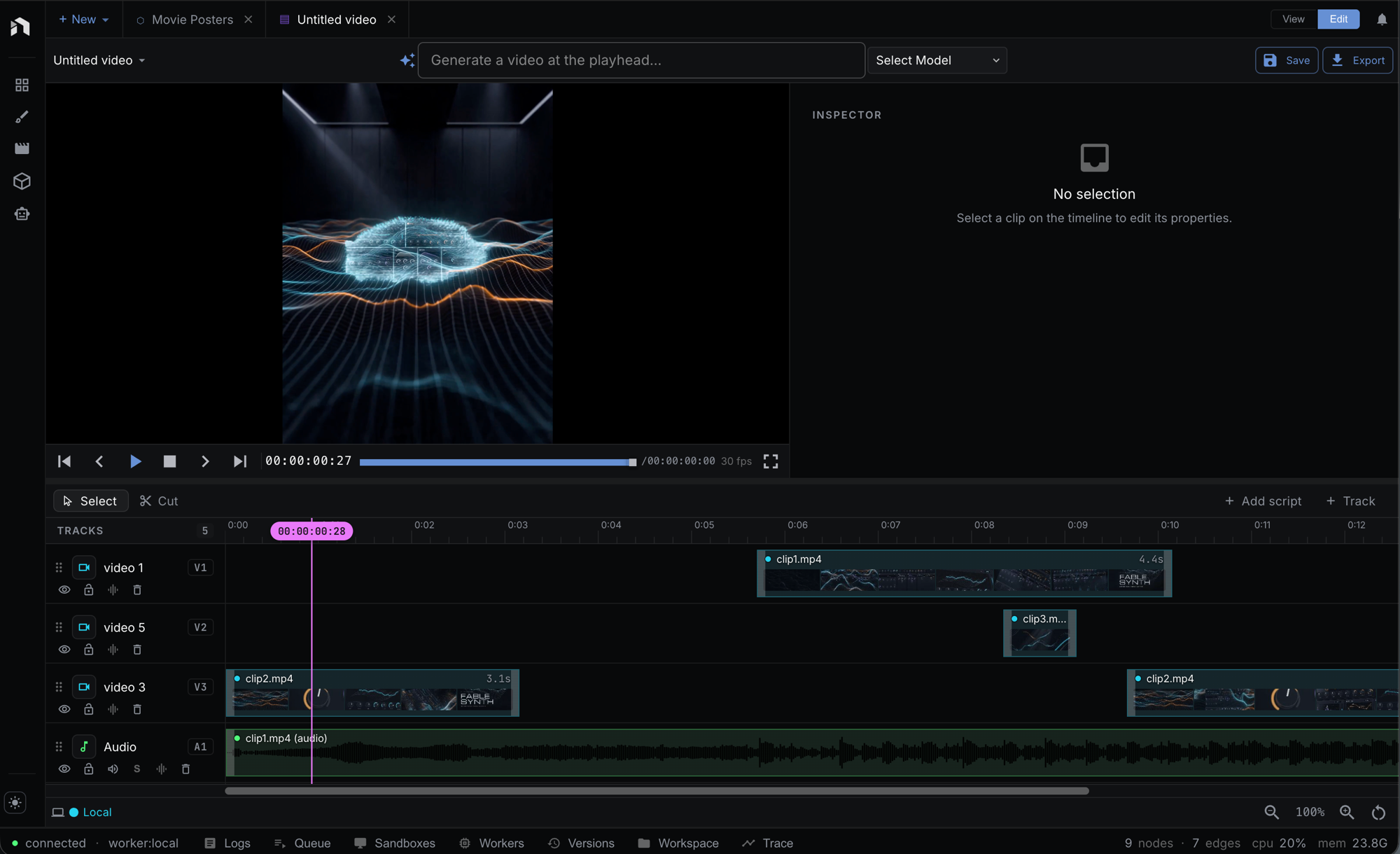
Overview
The Video Editor (timeline editor) is a non-linear, multi-track surface for assembling video, audio, and image clips. What sets it apart from a conventional NLE is that clips can be bound to NodeTool workflows — a clip can be the output of a text-to-image, image-to-video, or text-to-speech pipeline, and it stays editable: change a parameter and regenerate just that clip.
Features:
- Multi-track timeline — stack video, audio, and overlay tracks
- Imported clips (drag media from the Asset Explorer) and AI-generated clips side by side
- Authored text and shape clips with preset-based motion
- Clip editing — move, trim, split, duplicate, delete, with snap-to-playhead and snap-to-clip alignment
- Real-time preview compositing with a GPU compositor (WebGPU, Canvas2D fallback) and WebAudio mixing
- Frame-accurate transport — play/pause, stop, frame-step, skip to clip boundaries, timecode readout
- Generated clips bound to any workflow, with parameters exposed in the Inspector
- Staleness tracking — edit a bound workflow and the clip is flagged for regeneration
- Version history per clip — keep the last N successful generations and restore them
- Offline export — render the whole timeline to MP4 at the sequence resolution
- Full undo/redo and debounced autosave
Where this fits
The Video Editor is the surface where outputs become finished, time-based media. It pulls assets in as clips, binds workflows to generated clips so footage regenerates when parameters change, and exports the sequence back to a video asset — the same material a sketch, another workflow, or a Mini-App can pick up. Every surface shares one asset store and the same model/provider system.
See Key Concepts → How everything fits together for the full loop.
Opening the Video Editor
There are a few ways in:
- Direct route — navigate to
/timeline/:sequenceId. - Workspace tab — open a timeline as a tab alongside your workflows in
/workspace. - New sequence — create one from the timeline list panel or the Asset Explorer.
Each timeline (whether a standalone page or a workspace tab) runs in its own isolated set of stores, so multiple timelines can be open at once without interfering.
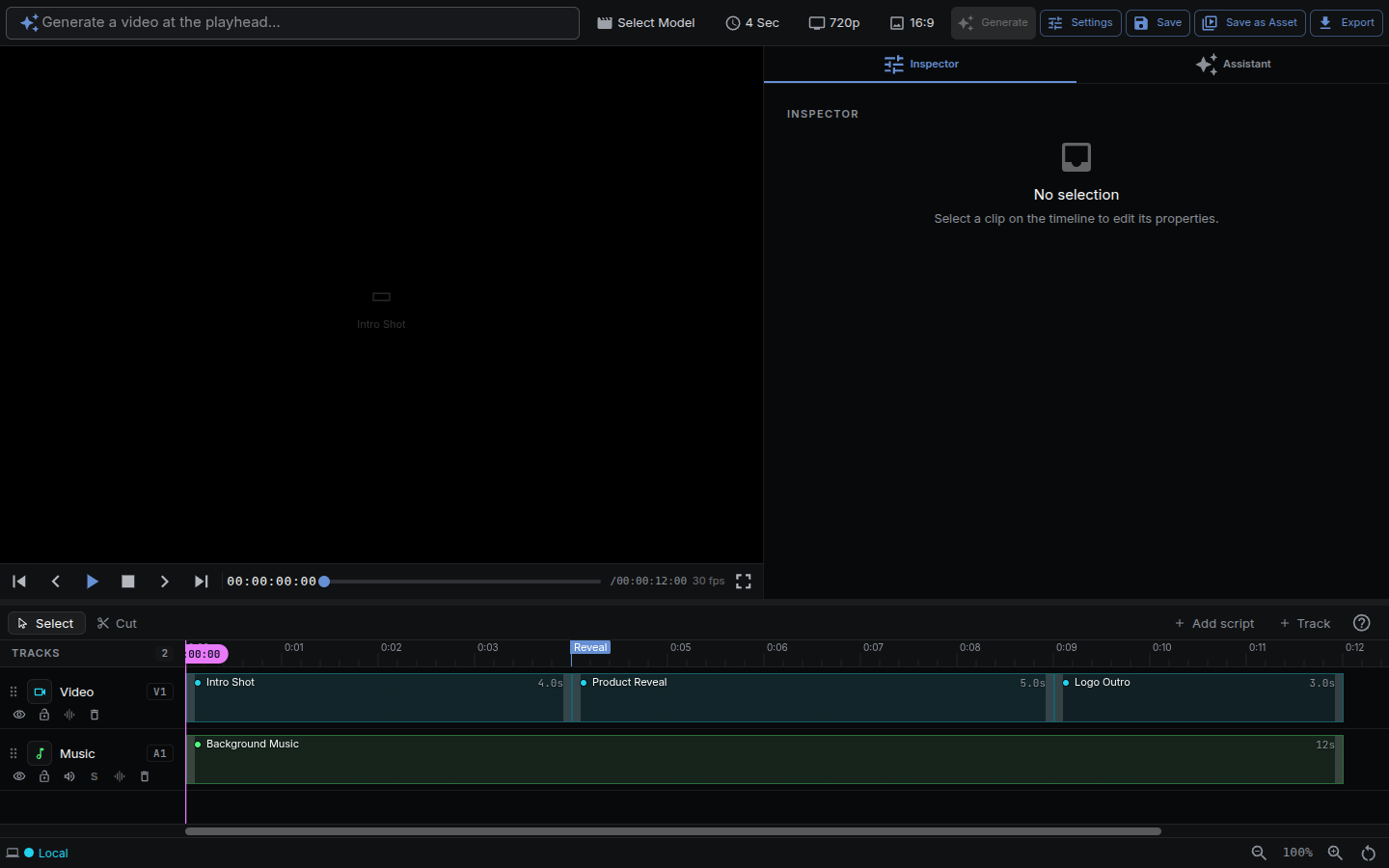
Anatomy of the Editor
| Region | What it does |
|---|---|
| Top bar | Sequence name, Save, Export, and an activity indicator for running generations |
| Preview | The composited video with transport controls, timecode, and FPS readout |
| Tracks | The multi-track timeline — a canvas-rendered ruler, the playhead, and the clips |
| Inspector | Per-clip controls for transforms, motion, authored content, and generated clip nodes |
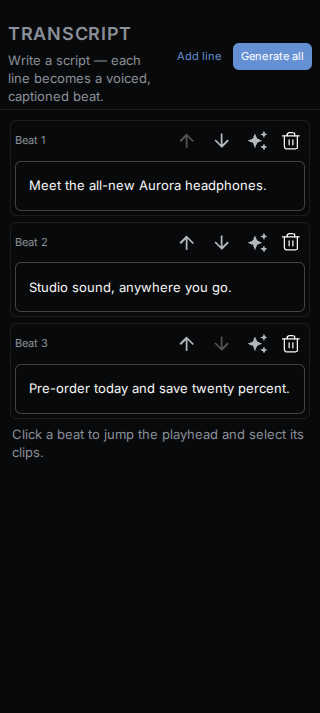
The transcript panel on the left turns a script into beats: each line becomes a voiced, captioned clip on the timeline.
Tracks & Clips
The timeline holds multiple tracks. Video and overlay tracks composite top-down; audio tracks mix together.
Clip operations:
- Add — drag media from the Asset Explorer onto a track, or add a generated clip from the add menu.
- Select — click a clip;
Shift/Ctrl-click to multi-select. - Move / trim — drag the body to move, drag the edges to trim the in/out points.
- Split — position the playhead and press
Sto cut a clip in two. - Duplicate / delete —
Ctrl/⌘ + Dto duplicate,Deleteto remove. - Snapping — clips snap to the playhead and to neighbouring clip boundaries for clean alignment.
Linked clips that share a link (for example a video and its extracted audio) move and trim together.
Preview & Playback
The preview composites every visible, unmuted track in real time.
- Transport — play/pause, stop, step one frame forward/back, and skip to the previous/next clip boundary.
- Timecode — frame-accurate
HH:MM:SS:FFreadout, with the sequence FPS shown alongside. - Scrubbing — drag the playhead across the ruler to scrub.
- Zoom —
Ctrl/⌘ + scrollzooms the timeline anchored at the cursor; a zoom slider sits in the status bar. - Audio — per-clip gain and fades, per-track mute/solo and volume, mixed down to a master output. Audio clips render a waveform in the clip body.
Video and audio are kept in sync by driving playback against the audio clock.
Generated Clips
A clip doesn’t have to be a file — it can be the output of a workflow.
Generation modes:
- Text-to-Image — generate a still from a prompt.
- Image-to-Video — animate an image.
- Text-to-Speech / Text-to-Audio — synthesize an audio clip.
- Workflow — bind any NodeTool workflow to the clip.
When you bind a workflow, NodeTool clones it into a clip-private variant and exposes the workflow’s Input* nodes as editable parameters in the Inspector — so you can tweak the prompt, seed, or any input and regenerate without leaving the timeline.
Staleness & versions:
- Each clip tracks a content hash of the bound workflow plus its parameter overrides. Edit the workflow (or its inputs) and the clip is flagged stale.
- A clip moves through states: draft → queued → generating → generated, plus stale, failed, locked, and missing.
- Successful generations are kept as versions — restore, favourite, or delete previous results per clip.
- Generation runs on the standard
WorkflowRunner; status streams back over the WebSocket connection keyed by job, so the timeline only listens to the jobs it cares about.
Round-tripping to the node editor: from a generated clip you can Open in Node Editor to edit the bound workflow on the full canvas, then return — the clip auto-marks stale so you can regenerate with the new logic.
Inspector
The Inspector swaps based on what’s selected:
- Imported clip — asset info, in/out points, transform, opacity, speed, and volume controls, plus a Replace Media action.
- Generated clip — a vertical node stack of the bound workflow’s nodes, each with its parameters (reusing NodeTool’s property fields) and a per-node status indicator. A clip-actions menu covers Generate, Regenerate, Generate Stale, Duplicate as Variation, Open in Node Editor, Lock, and Revert, alongside the version list.
- Text or shape clip — content and appearance controls for text, fill, stroke, geometry, and corner radius.
Every visual clip includes an Animate section. Add an entrance, exit, emphasis, or loop preset, then adjust its timing, easing, and preset parameters.
Effects
Clips and tracks carry an effects chain that runs in the same compositor as the live preview:
- Video — color correction, blur, sharpen, vignette, chroma key.
- Audio — gain, 3-band EQ, filter (lowpass/highpass/bandpass), compressor.
- Clip transforms — opacity, blend mode (normal, screen, multiply, add, overlay), speed, and fade-in/out.
Animations
Motion presets add animation without a keyframe editor. Select a visual clip, open Animate in the Inspector, choose a role and preset, then adjust duration or period, delay, easing, and preset parameters.
- In / Out — fade, slide, pop, spin, wipe, blur, and colorFade at a clip boundary. Wipe reveals the clip behind a directional mask with an adjustable feathered edge; blur racks from soft to sharp; colorFade blooms grayscale into full color.
- Emphasis / Loop — pulse, flash, shake, bounce, float, breathe, spin, or Ken Burns motion while the clip is active.
- Word stagger — on text clips, any animation can run once per word, each word offset in time from the previous (offset and on/off in the inspector;
staggeronui_timeline_animate_clipfor the agent). Words pop, slide, or fade in sequence — motion typography without keyframes. See plans/motion-typography.md. - Track markers — shaded edge wedges show entrance and exit windows; a loop icon marks emphasis or repeating motion. Select a marker to open its controls.
- Agent authoring — timeline tools can list presets, apply or clear motion, and inspect fixed-time frames before export.
Preview and export sample the same animation resolver, so transforms and opacity match at each frame.
Export
Export renders the entire timeline to an MP4 at the sequence resolution.
- Rendering is frame-by-frame through the same GPU compositor used for preview, so the export matches what you see.
- Audio is mixed offline and muxed with the encoded video.
- A progress dialog reports the phase (audio mix → video encode → finalize) and the export can be cancelled.
AI timeline editing
Generated clips can hold multiple takes, source-time media tracks, derived reframes, and nondestructive generative edits. Use them to compare a result, follow a subject, make another aspect-ratio cut, or repair a shot without changing the original edit. See AI Timeline Editing.
Keyboard Shortcuts
| Shortcut | Action |
|---|---|
Space |
Play / pause |
S |
Split clip at playhead |
Delete / Backspace |
Delete selected clip(s) |
Ctrl/⌘ + C / X / V |
Copy / cut / paste clips |
Ctrl/⌘ + D |
Duplicate selected clip(s) |
Ctrl/⌘ + Z |
Undo |
Ctrl/⌘ + Shift + Z |
Redo |
Ctrl/⌘ + scroll |
Zoom timeline (anchored at cursor) |
Common Workflows
Assemble a rough cut from your assets
- Open a new sequence and drag clips from the Asset Explorer onto the video track.
- Trim and reorder clips; use
Sto split andDeleteto remove. - Add an audio track for music or narration and adjust per-clip volume and fades.
- Scrub the preview to check timing, then Export to MP4.
Generate a shot in place
- Add a generated clip and choose Image-to-Video (or bind a custom workflow).
- In the Inspector, set the prompt and inputs exposed from the workflow.
- Generate — the clip streams through queued → generating → generated.
- Not quite right? Tweak a parameter and Regenerate, or Duplicate as Variation to compare versions.
Iterate on a bound workflow
- Select a generated clip and Open in Node Editor.
- Edit the workflow on the full canvas and save.
- Return to the timeline — the clip is flagged stale.
- Generate Stale to refresh it with the new logic.
Related Features
- Workflow Editor — build the workflows you bind to generated clips
- Asset Management — organize the media you import as clips
- AI Timeline Editing — takes, tracking, reframing, generative edits, and interchange
- Sketch Editor — edit stills before or after they land on the timeline
- User Interface — tour of the main NodeTool views
Next Steps
- Bind one of your existing workflows to a clip and generate a shot.
- Build a multi-track sequence mixing imported footage with generated clips.
- Explore the Cookbook for workflow patterns you can drop onto the timeline.
Last updated: July 2026