
The mobile app runs the same Mini Apps you build on the desktop. It reads them from the server, renders the document with native controls, and runs the workflow behind them. It does not edit them — the App Builder stays on the desktop.
New to Mini Apps? Read Mini Apps first: it explains what a widget, a binding, and an operation are.
Finding your apps
The Apps browser lists every app on the server you are connected to, newest
first. Reach it from the apps icon in the Workflows header, or with the deep
link nodetool://apps.
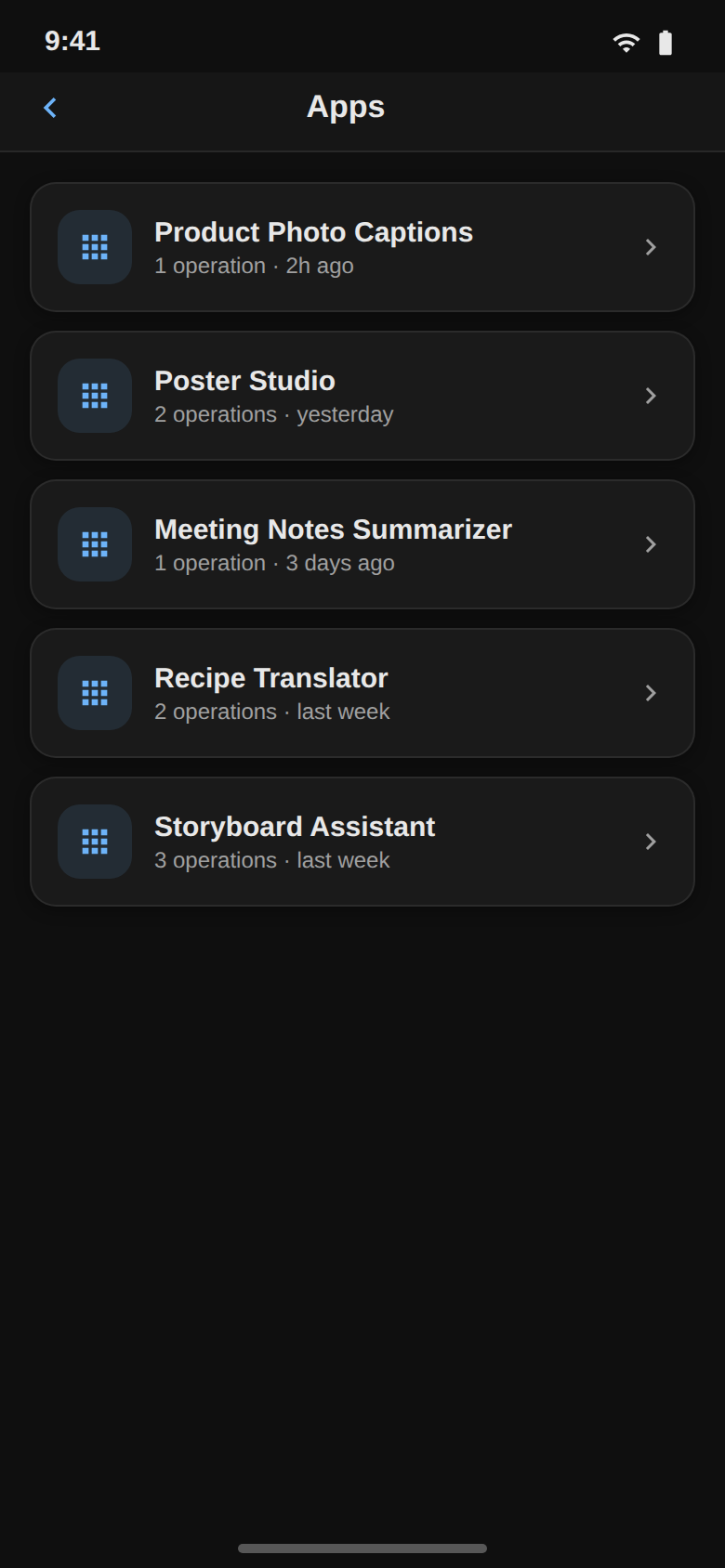
Each row shows the app’s name, how many operations it declares, and when it last
changed. Pull down to refresh. Tapping a row pushes the app onto its own screen;
nodetool://app/<application-id> opens one directly, which is what a
notification or a shared link points at.
If the list is empty, nothing has been published to that server yet — build an app on the desktop and it shows up here on the next refresh.
Running an app
An app screen renders the released snapshot if the app has been published, and the draft document otherwise. The heading comes from the document, the widgets below it are the ones you placed in the builder.
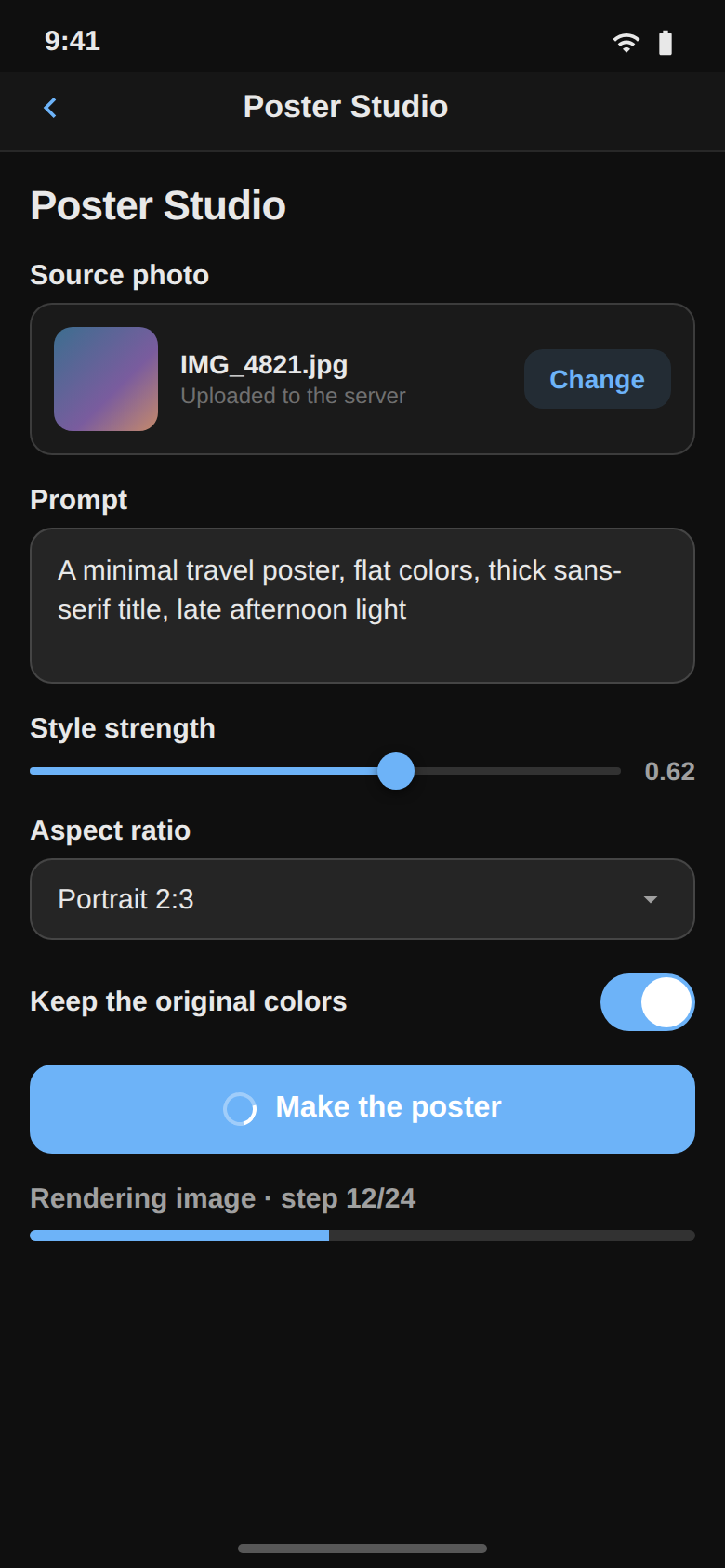
Inputs, the Run button, and the progress bar behave as they do on the web. While a run is going the button shows a spinner, and the Progress widget shows what the run says it is doing — the node’s activity label outranks the static label the author set, so an agent workflow reports its step instead of spinning silently. A failed run puts its error in a banner above the app; the next run replaces it.
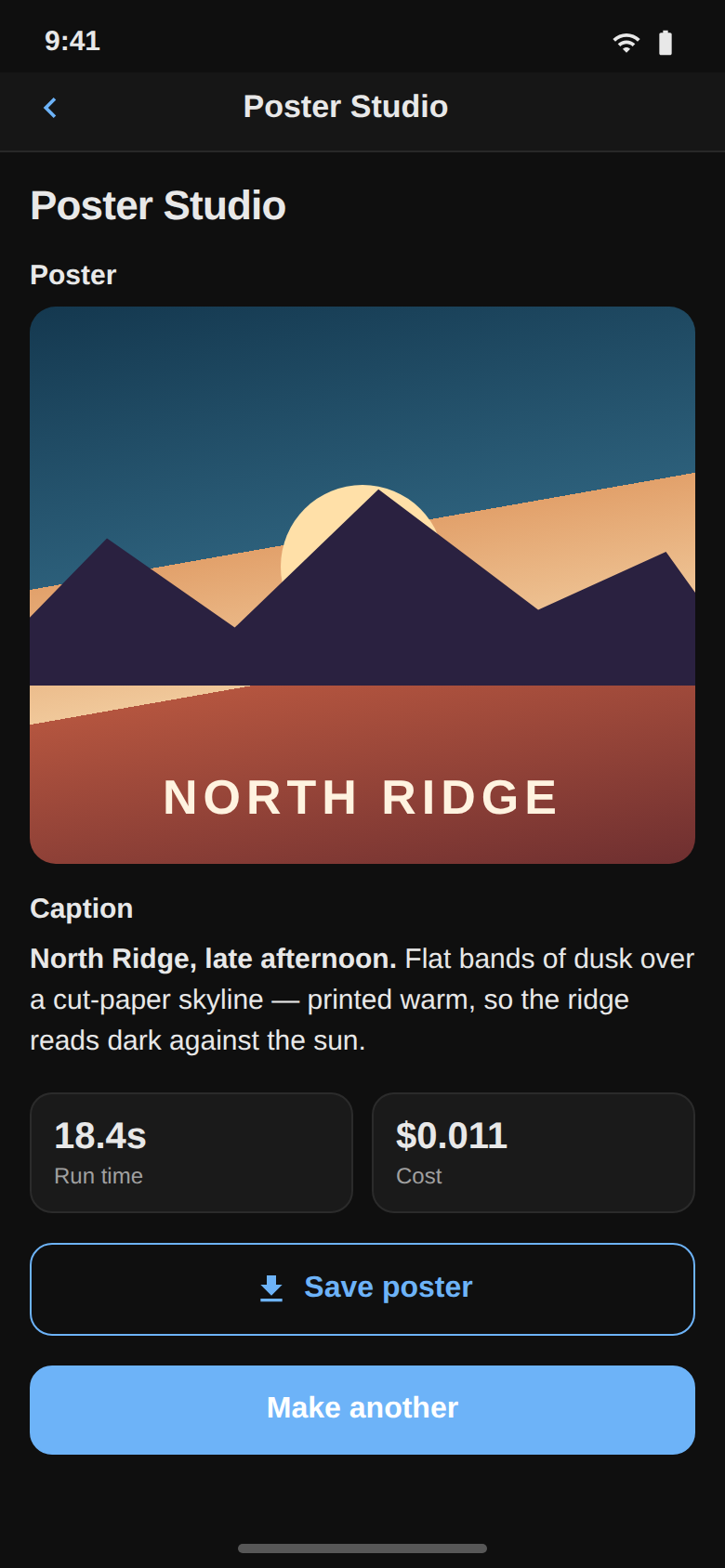
Outputs fill in as the run streams them.
Widgets
Every widget in the builder’s catalog has a native renderer. The document decides layout and behavior; only the controls differ. Four render differently enough to be worth knowing:
| Widget | On the phone |
|---|---|
| Columns | Stacks vertically. Two columns side by side are unusable at phone width. |
| ImageInput / AudioInput / VideoInput / DocumentInput | Opens the system photo or file picker. The pick is uploaded to the server so the workflow gets a URL it can fetch; if the upload fails the local file is used, which still previews on the device. |
| ResourcePicker / ResourceGallery | A list of rows rather than a grid of tiles. Tapping one opens that document in the screen its kind already has — a storyboard in the storyboard editor, a sketch in the sketch viewer, an asset in the asset viewer. |
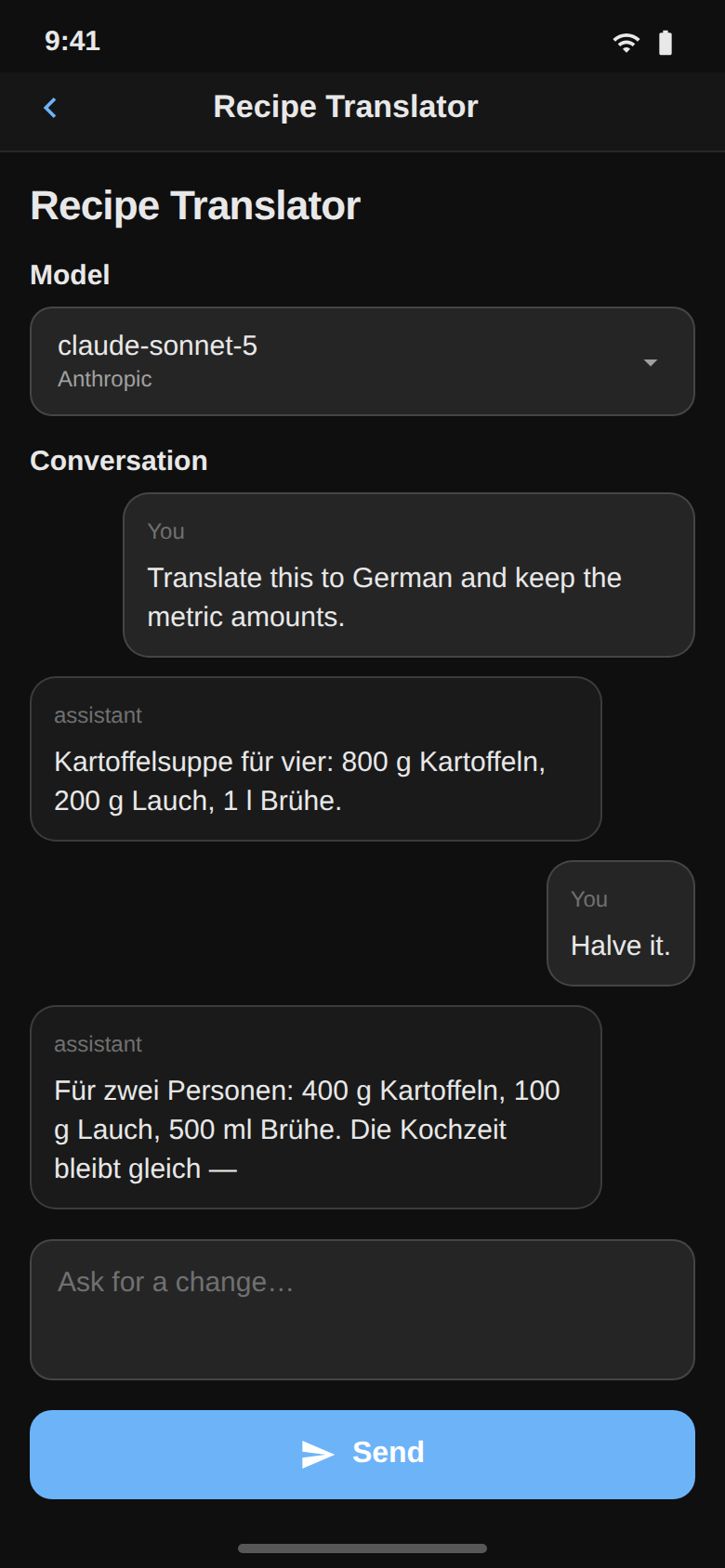
| ChatThread / ChatComposer / ModelSelect | Native bubbles, a multiline composer, and a two-step provider-then-model picker. |
A widget the phone has no renderer for says so in place — “… is not available on mobile” for a catalog widget, “Unknown widget” for one from a newer builder than the installed app. Nothing silently disappears.
What the phone does differently
- One workflow per screen. The screen holds the workflow the app’s first operation binds. Other operations over that same workflow run normally, each dispatched by id. An operation bound to a different workflow refuses to run and says so, rather than running the wrong graph under its name.
- Every run is a server run. There is no browser worker on mobile, so the
reactive-subgraph path the web runtime uses does not exist. A
runaction always executes the whole workflow on the server. Apps that lean on partial re-execution feel heavier here. - Runs are matched by job id. A streaming message for any other job is dropped, so a run you started in the chain editor never folds into what the app shows.
- Persistent variables survive the app closing. A variable declared
scope: userwithpersist: trueis stored on the device, keyed by app, and restored before the document’s defaults are applied — last session’s value beats the declared default. Instance-scoped variables die with the screen, which is what their scope means.
Requirements and limits
The mobile app talks to a NodeTool server; set its URL in Settings and see Mobile App for connecting from a physical device, emulators, and firewalls.
Known limits:
- No editing. Authoring an app document needs the desktop builder.
- Apps are listed per server. Switching servers in Settings switches the list.
- A Timeline widget shows a summary card — name, duration, track and clip counts — not the timeline itself. A Sketch widget renders the composited image.
Related
- Mini Apps — what an app is, and the vocabulary
- Building Mini Apps — nine app shapes, built step by step
- Mini App Reference — every widget and setting
- Mobile App — the rest of the mobile app