
One sentence in, a finished video out. About 30 minutes, mostly render time. No account. You bring your own API keys.
Tip: The plan is text and costs cents. The clips cost dollars. You check the plan before you pay for clips.
1. Install and connect
- Download NodeTool from nodetool.ai, install it, and open it. You do not need a graphics card, because the models run in the cloud. OS details: Installation.
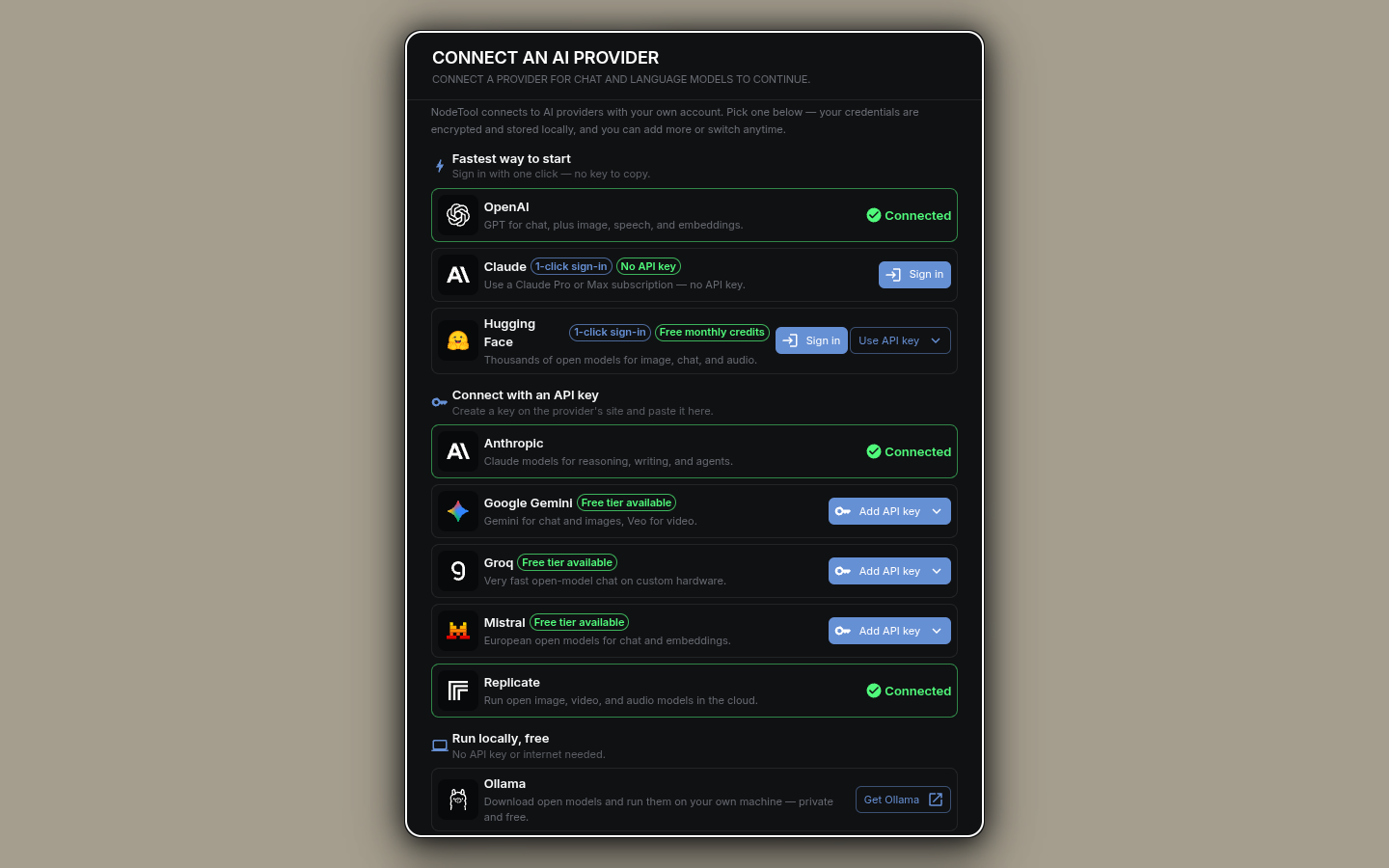
- Connect your models. NodeTool uses AI from other companies. An API key is the password that lets NodeTool use your account with them. They bill you for what you use. Open Settings → Models & Providers, then sign in or paste a key.
Connect a provider for each row you need:
| You need | For | Get it from |
|---|---|---|
| Language model | Plans the video | OpenAI, Anthropic, Gemini, Groq, Mistral, or a Claude subscription |
| Video model | Renders the clips | FAL, Replicate, Gemini, OpenAI, kie.ai, and others |
| Voice model (optional) | Reads the voiceover | OpenAI, ElevenLabs, Gemini, and others |
Tip: The fastest setup is FAL plus one language provider. The capability matrix lists which provider covers which model type.
2. Say what you want
- On the Home tab, pick Video, or use + New → New timeline.
-
Type one sentence:
A 15-second ad for a desk lamp: a quiet desk at night, the lamp switches on.
- Press Continue. If you close the tab, NodeTool keeps your progress.
Other ways to start:
- Drop your media — use your own clips, audio, or images.
- Start from a script — write the words first.
- Start with a blank timeline — skip the plan.
3. Plan the beats
A beat is one clip in your video.
Pick a template:
| Template | Length | Shape |
|---|---|---|
| 15s ad | 15 s | 16:9 |
| 30s spot | 30 s | 16:9 |
| 60s explainer | 60 s | 16:9 |
| 9:16 social clip | 20 s | 9:16 |
| Trailer | 45 s | 16:9 |
| Music video | 60 s | 16:9 |
| Slideshow | 40 s | 16:9 |
Then:
- Pick a Model at the bottom, then press Plan the beats. This step costs one language model call.
- Edit the plan. Each beat has a description, a length, a transition, and a voiceover line. The total length turns to a warning color when the plan is too long. Re-plan writes the beats again and follows your edits.
- Press Continue to look.
4. Pick the look and generate
- Set the look:
- Aspect ratio — comes from the template. You can change it.
- Video model — each tile plays a sample clip.
- Voiceover — on or off. Pick a voice when it is on.
- Music — adds one music track under the whole video.
- Check the cost next to the button.
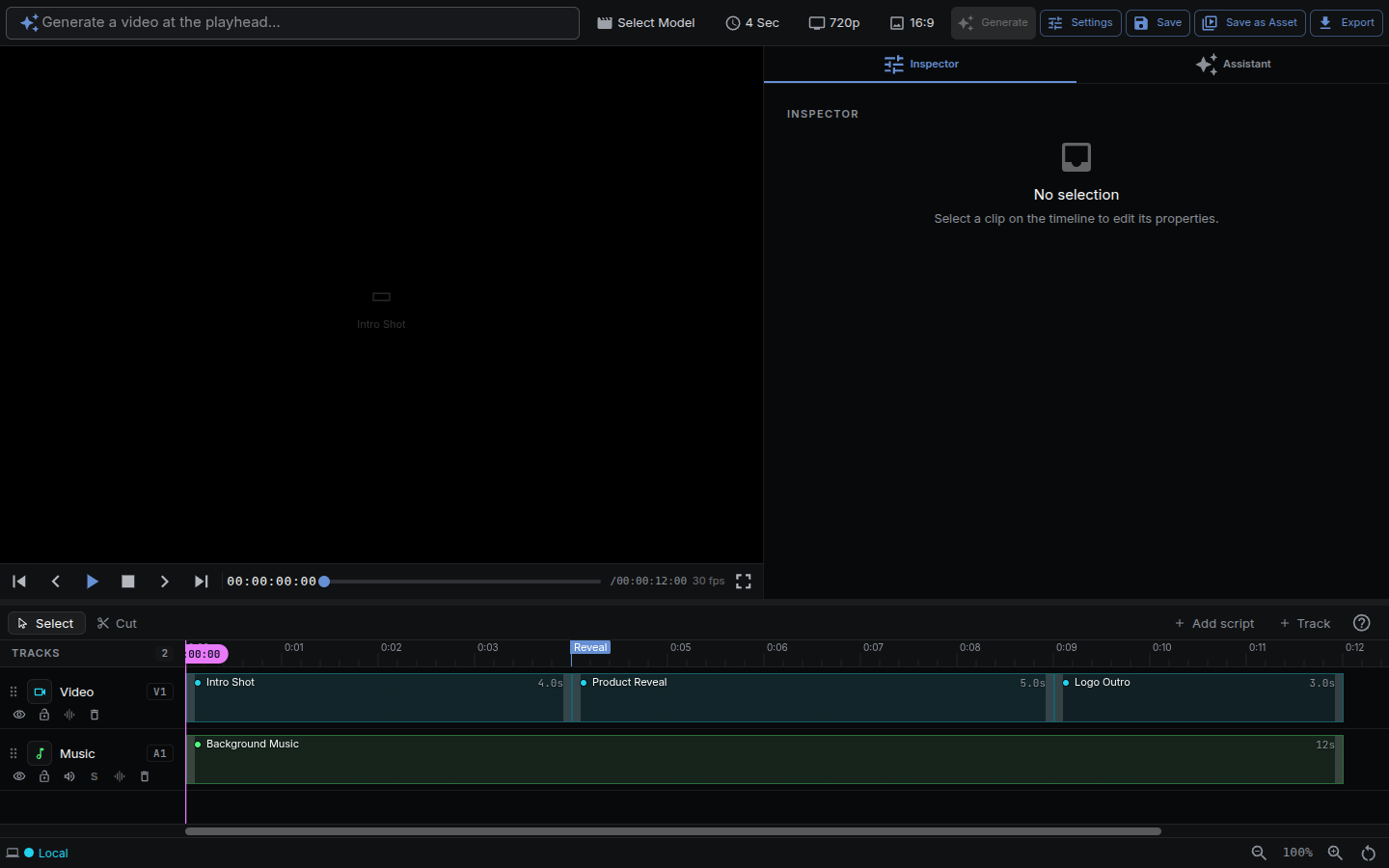
- Press Generate your video. The timeline opens and the clips fill in as they finish.
5. Edit and export
- Press Retry N failed to run failed clips again. You can close the tab during generation. The clips are there when you come back.
- Edit the cut. Drag to move, drag an edge to trim,
Sto split,Deleteto remove. These are the default NodeTool keys. Press?to see them and to switch the keyboard preset to Premiere Pro or Final Cut Pro. - Or ask the Editor Assistant: “fade out the last clip”.
- Press Export video to save an MP4 file. Save as Asset keeps it in your library.
Every step is also an agent tool. You can click, chat, or do both. Coding agents get the same tools over MCP: NodeTool as an MCP Server.
What you just did
- Providers and API keys. You connected a language model and a video model from your own accounts. See Models & Providers.
- Beats. You turned one sentence into a plan of clips before paying for any of them. See Creative Agent.
- Timeline. You generated the clips onto tracks you can trim, split, and reorder. See Video Editor.
- Assets. You exported the result and saved it to your library, where any workflow can reuse it. See Key Concepts.
- Agent. You used the Editor Assistant on the same timeline you edit by hand. See Chat.
Troubleshooting
Something stuck? See Troubleshooting or ask on Discord.
Next steps
Questions: GitHub