
NodeTool lets you store and organize files used in your workflows. Assets can be images, audio clips, videos, PDFs, 3D models, or any other resources referenced by nodes.
Where this fits
Assets are the shared material between NodeTool’s surfaces. Workflows read assets and write new ones; sketches open an asset and render an edited one back; timelines import assets as clips and export a finished video asset. The Asset Explorer is the one store all of them read from and write to, so a file produced in any surface is immediately usable in the others.
See Key Concepts → How everything fits together for the full loop.
Asset Explorer
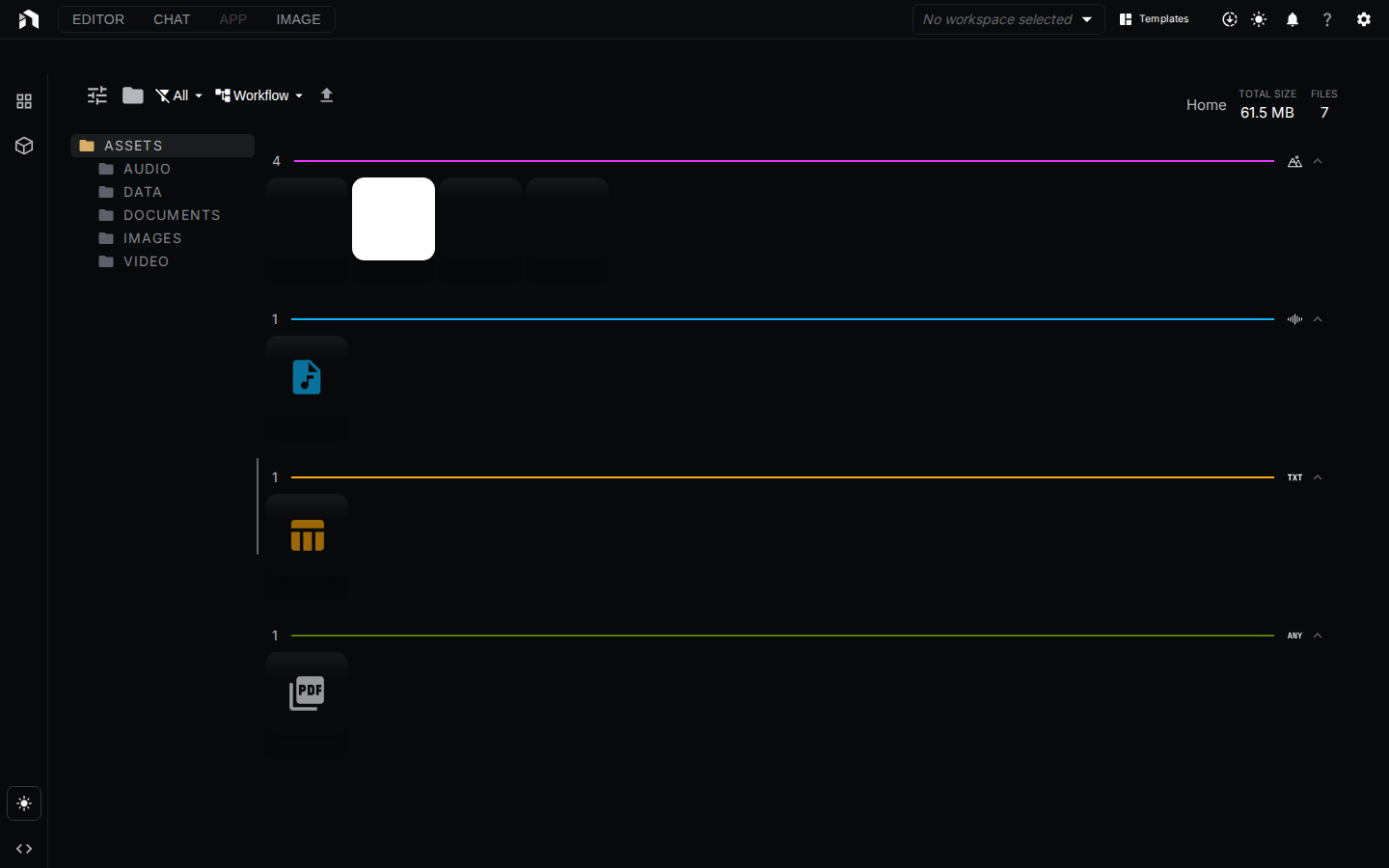
The Asset Explorer is the central hub for managing your files. Open Assets from the app menu (it opens as a tab, at /assets), or use the Assets view in the left panel.
Views
- Grid view – Thumbnails with previews, best for visual assets like images and videos
- List view – Compact rows with metadata columns, best for large libraries
Switch between views with the toggle in the toolbar.
Toolbar
- Select all and Deselect
- Sort assets by Name, Date, or Size
- Filter by file size: All, Empty, < 1 MB, 1-10 MB, 10-100 MB, > 100 MB
- Type filter: All, Images, Videos, Audio, 3D Models, Text, Documents, Other
- Item Size slider for the grid
- Create folder and Upload files
The page header shows the total size, folder count, and file count of the current folder.
Navigation
- Folder tree – Browse your directory hierarchy in the left panel
- Search – Matches file names only, with a substring match. The input searches the current folder (Search current folder…). The toggle next to it switches to Search all assets…, which searches every folder and shows each result’s folder path. Global search starts at two characters.
Uploading Files
- Drag and drop files directly into the Asset Explorer
- Use the Upload files button in the toolbar
- Drop files from your computer onto the workflow canvas. NodeTool uploads them and adds a matching constant node.
The server rejects a single upload above NODETOOL_MAX_UPLOAD_BYTES (1 GiB by default).
Working with Assets in Workflows
Drag any asset from the Asset Explorer onto the workflow canvas. NodeTool adds a constant node for its type, such as nodetool.constant.Image, Video, Audio, Document, or Model3D. Dragging several selected assets adds one node each. An unsupported type shows an “Unsupported file type” error.
Asset Viewers
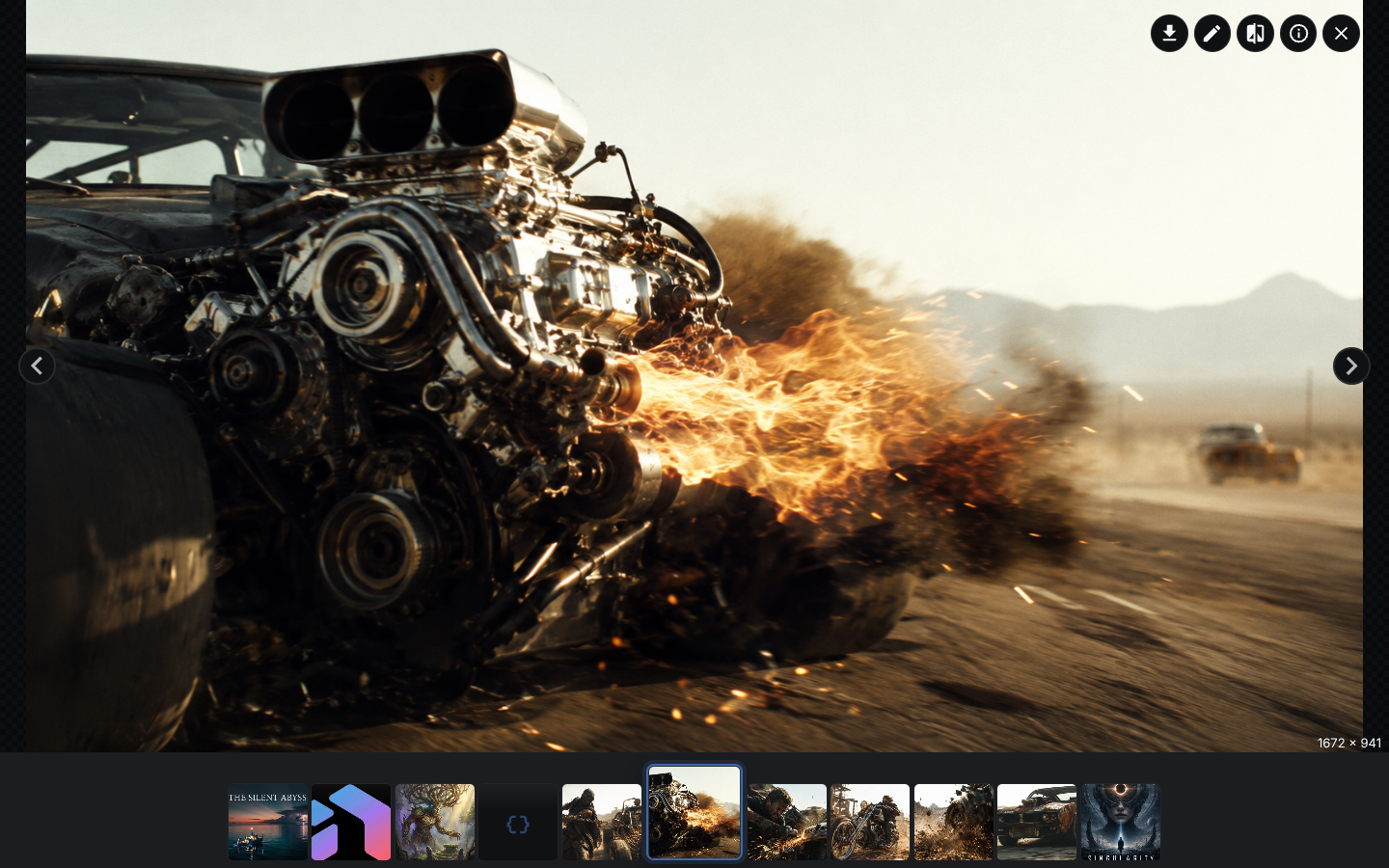
NodeTool includes specialized viewers for common file types:
| File Type | Viewer Features |
|---|---|
| Images | Zoom up to 16x, pan |
| Audio | Waveform with zoom and minimap. To trim or fade, see Audio Editor |
| Video | Browser video controls |
| Previous and next page, zoom in, zoom out, reset zoom | |
| Text | Markdown rendering, code, CSV, and plain text |
| 3D Models | Orbit and zoom, grid, axes, wireframe toggle, fullscreen |
Open any asset in its viewer by double-clicking it in the Asset Explorer.
Collections
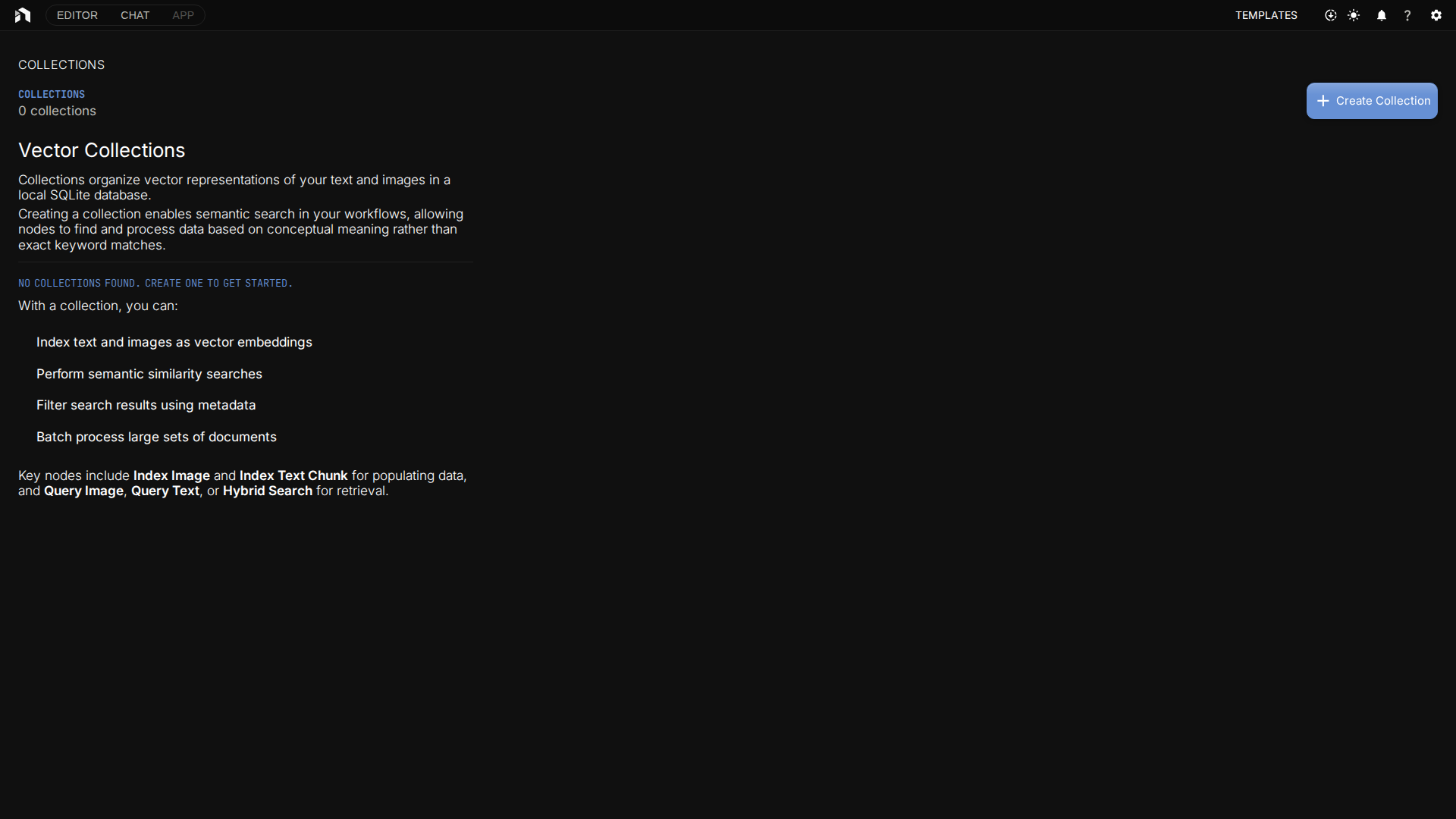
Collections hold text chunks for semantic search in RAG (Retrieval-Augmented Generation) workflows. They are separate from the asset library: a collection stores indexed text, not asset files. Open Collections from the app menu to create one and drop text files onto it. See Collections for the upload route, its limits, and how workflows use collections.
Metadata
- Assets track
size,content_type, andduration(audio and video), plus a free-formmetadataobject. - On the desktop app, an imported video whose longer side is at least
NODETOOL_VIDEO_PROXY_MIN_SIZE_PXpixels (default 1920) gets a smaller preview proxy built in the background so timeline scrubbing seeks fast. Export reads the original. - Files at or above
NODETOOL_EXTERNAL_ASSET_THRESHOLD_BYTES(default 1 GiB) stay at their original path and the asset references them in place. See External assets.
Document Indexing
Text-based files can be indexed for vector search:
- Extract text from binary formats first, for example with
lib.pdf.ExtractText - Index the text into a Collection with an index node, or drop text files onto the collection tile
- Use query nodes (
vector.QueryText,vector.HybridSearch) to search the indexed text - Combine with language models for RAG
See Indexing for detailed setup instructions.
Storage
Assets are stored locally under the NodeTool data directory by default: $XDG_DATA_HOME/nodetool/assets, falling back to ~/.local/share/nodetool/assets on macOS and Linux, and %APPDATA%\nodetool\assets on Windows. Set ASSET_FOLDER or STORAGE_PATH to move it.
For deployed instances, assets can be stored in:
- S3-compatible storage – AWS S3, MinIO, or compatible services
- Supabase Storage – Integrated with Supabase auth
See Storage for backend configuration.
Next Steps
- Indexing – Set up document indexing for RAG workflows
- Storage – Configure storage backends
- Workflow Editor – Use assets in your workflows
- Example: Chat with Docs – Build a RAG workflow with your documents