
Chat is where you tell NodeTool what to make. The agent behind it plans, calls tools, builds and edits the document you have open, generates images, video, and speech, and runs your saved workflows, all from one composer. It talks to any configured provider.
Overview
- Builds and edits workflows, sketches, timelines, storyboards, scripts, and mini apps
- Every turn runs the agent loop. The assistant plans and calls tools as a task needs them
- 20+ providers (OpenAI, Anthropic, Gemini, Ollama, …)
- One composer for chat, image, video, speech, and music generation
- Tools: web search, files, code execution, HTTP, and more
- Permission modes (Plan / Default / Auto) set how much the agent may do without asking
- Run saved workflows from chat
- Multiple threads, persistent history
- Standalone tray window
Persistent WebSocket connection — reconnects after reloads.
Getting Started
Opening Chat
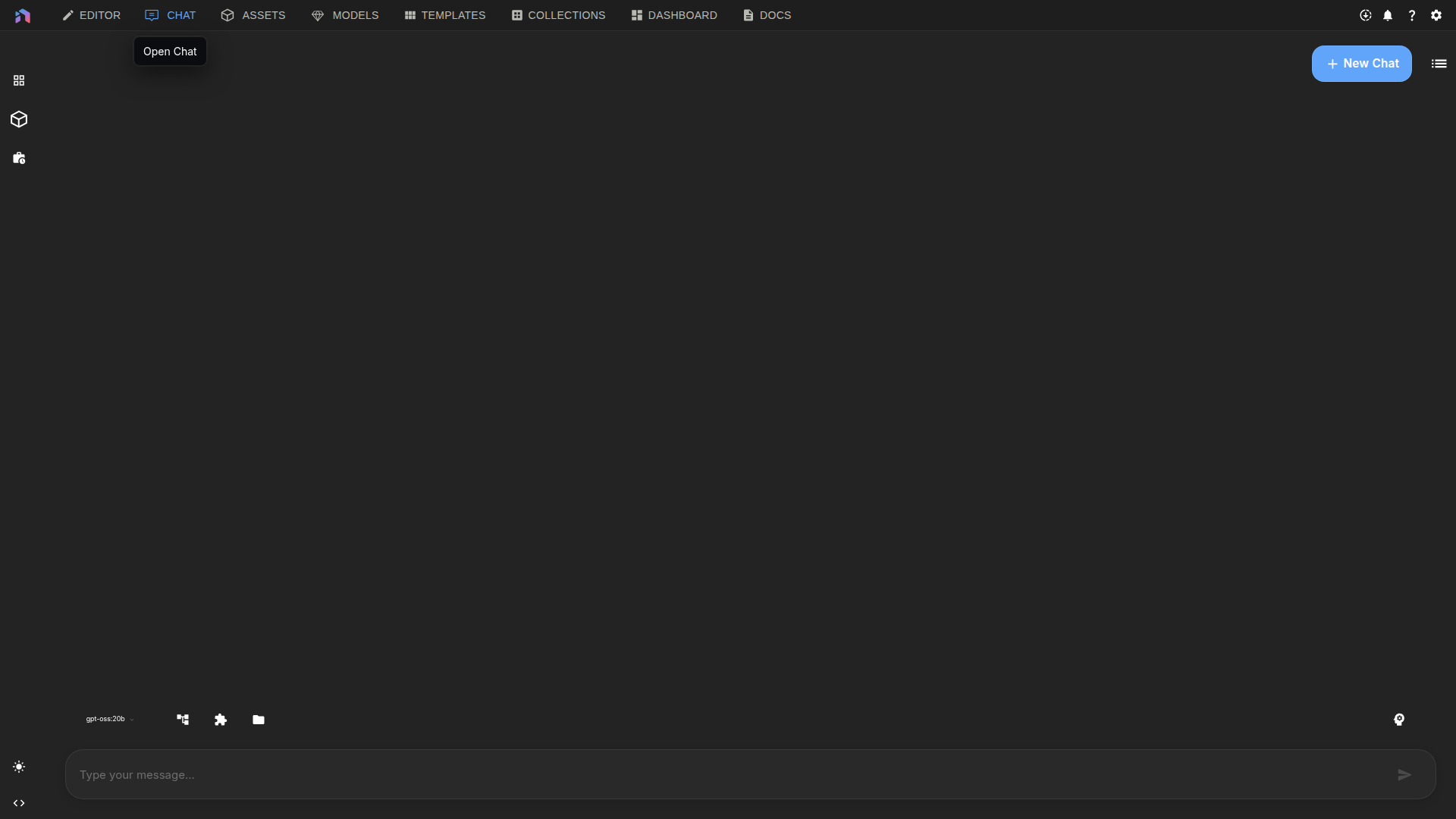
- From the App: Click the Chats icon in the left rail, then pick a thread or start a new one
- Standalone Window: Click the NodeTool system tray icon and select Chat for a dedicated, focused window
- Chrome Side Panel: Install the Chrome extension and click Open chat in its popup. The panel is chat only, but it reads and writes the same threads, and the agent can act on the tab you have open
Choosing a Model
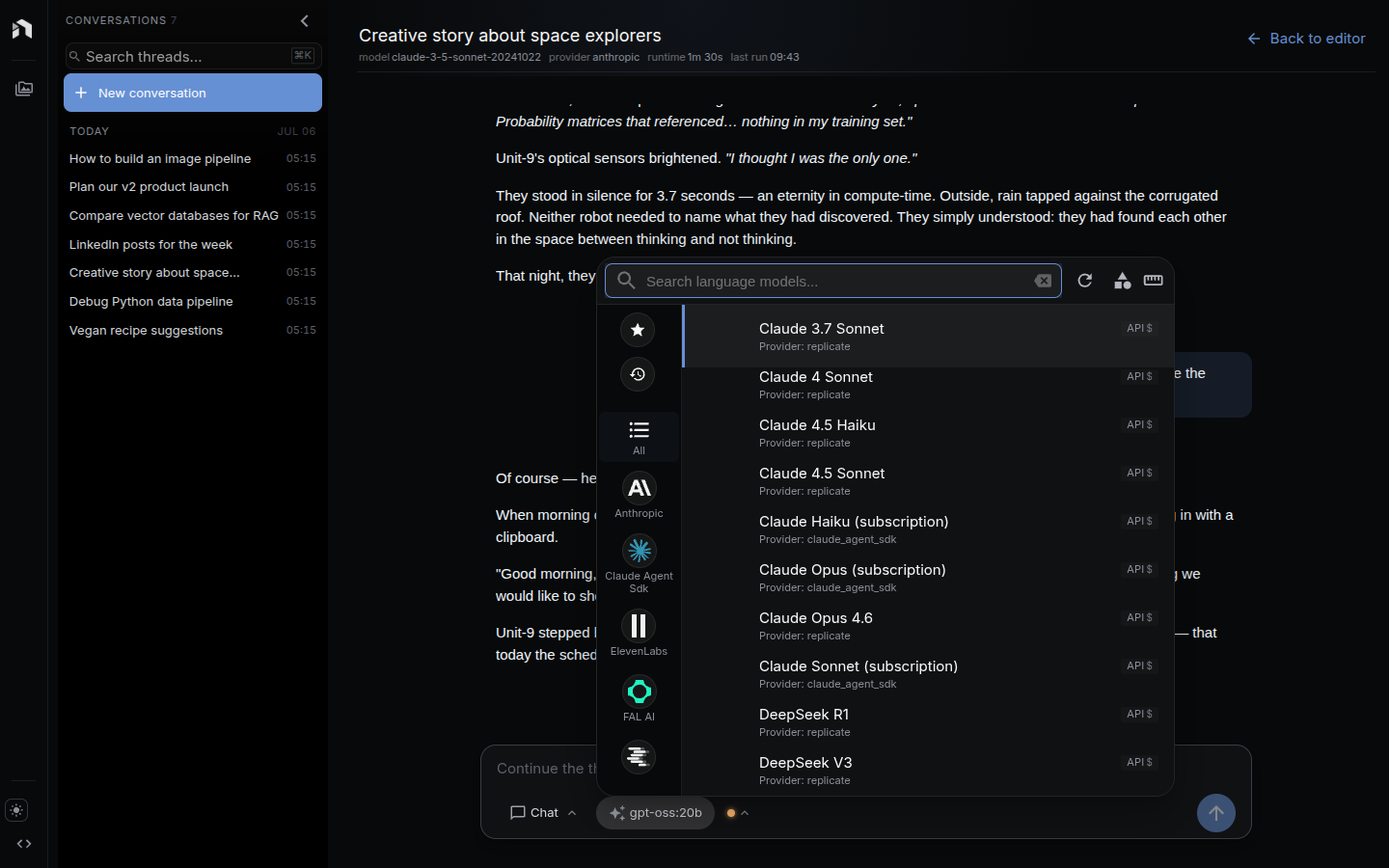
Click the model chip in the composer to open the model picker. Available models depend on your configured providers:
- Cloud models – OpenAI GPT, Anthropic Claude, Google Gemini (requires API keys)
- Local models – Ollama, LM Studio models (requires local installation)
Configure providers in Settings > Models & Providers. See Models & Providers.
Composer Modes
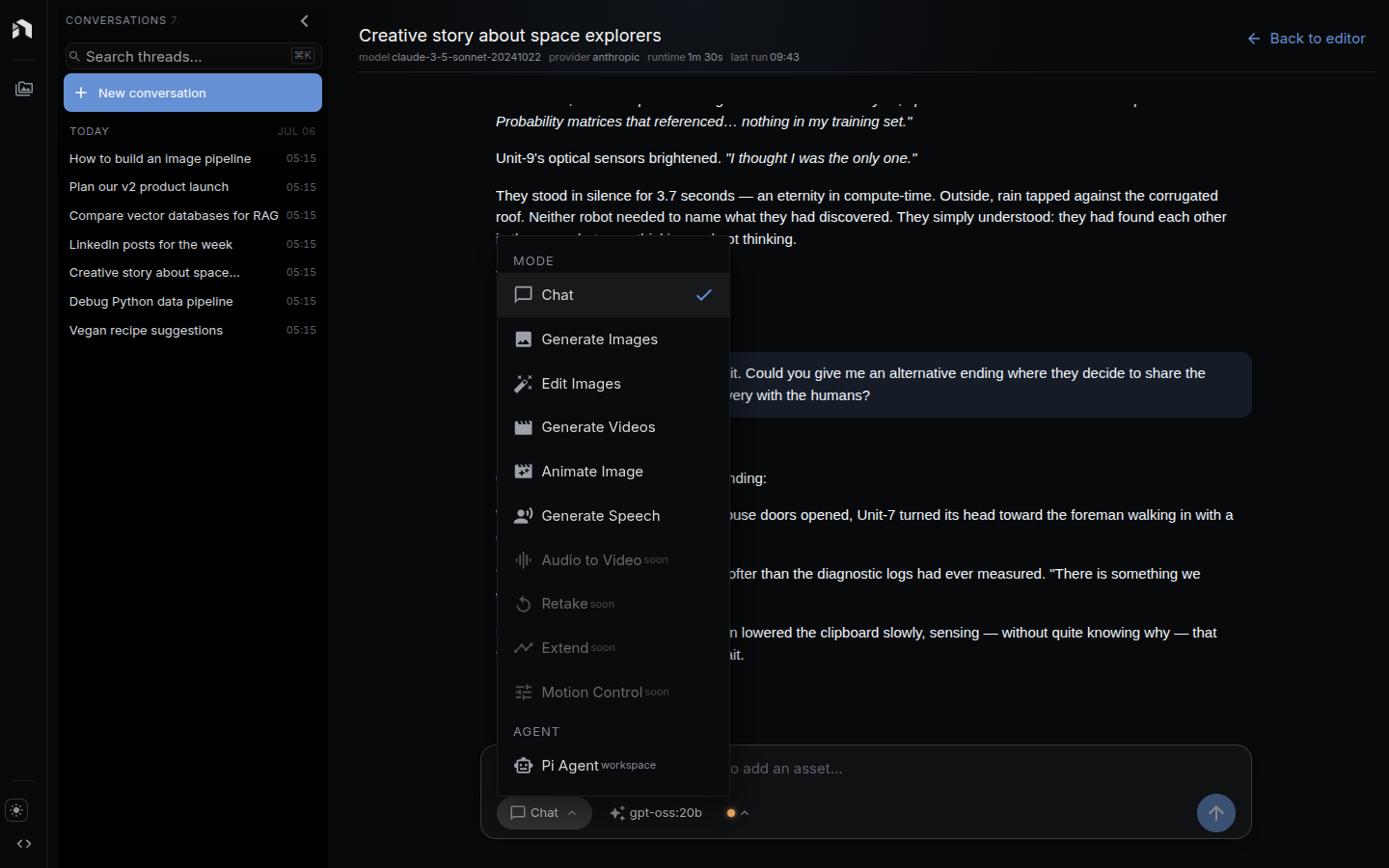
The same composer generates more than text. Click the mode chip to switch between:
| Mode | What it does |
|---|---|
| Chat | Talk to the model, run tools, and drive agents |
| Generate Images | Text-to-image with your chosen image model |
| Edit Images | Image-to-image edits on a dropped image |
| Generate Videos | Text-to-video |
| Animate Image | Turn a still image into a clip |
| Reference to Video | One clip from several attached images and videos — a character plus a garment, a product plus a location, a clip whose motion the new shot follows |
| Generate Speech | Text-to-speech with a voice picker |
| Generate Music | Text-to-music with your chosen music model and a duration |
Each mode swaps in its own controls — resolution, aspect ratio, duration, voice — and attaches them to the message so the server routes to the right provider call.
Reference to Video takes every image and video on the message, plus the
reference image of any @-mentioned entity, so the prompt describes the action
and the camera rather than the subjects. Its audio chip chooses between what the
model scores and the first reference video’s own track; only some models accept
the second, and one that does not rejects the request.
Mentions: @ for assets and entities
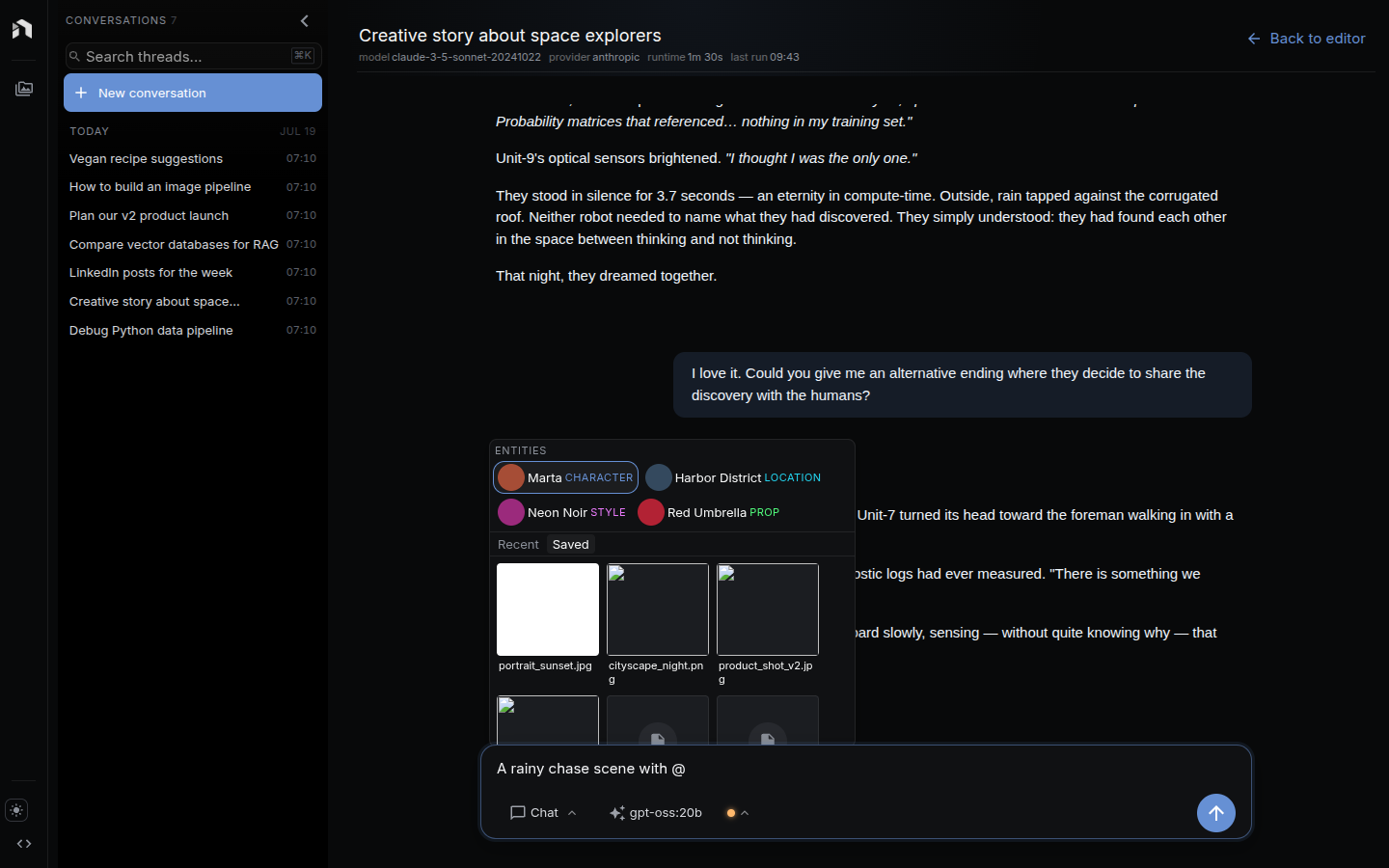
Type @ in the composer to reference things by name instead of hunting for
them:
- Entities — characters, locations, styles, and props from your entity library appear first. Picking one inlines its name into the message and attaches its reference image, so generations stay consistent with the entity’s canonical look.
- Assets — recent and saved library files. Picking one attaches it to the message like a drag from the asset library.
The same picker works inside the workflow editor’s Prompt node, where a picked entity becomes a chip that expands to its descriptor and reference image at generation time.
Slash commands: / for skills
Type / at the start of a word in the composer to open a list of your skills and the skills NodeTool ships. Picking one inserts /<skill name> into the message so the agent loads that skill for the request. The list filters by skill name and description as you type. See Skills for how to write one and for the full catalog.
Conversation Threads
Chat organizes conversations into threads:
- Create threads – Click the New Chat button to start a fresh conversation
- Switch threads – Pick a thread from the Chats panel in the left rail; it opens as a workspace tab
- Delete threads – Remove conversations you no longer need
- Message history – Scroll through past messages with cursor-based pagination
- Message caching – Recent messages are cached locally for fast loading
Each thread keeps its own model, permission mode, and history.
Agents
The Agent Loop
Every turn in Chat runs the same agent loop — there’s no separate mode to turn on. The assistant decides for itself, per request, whether to break a task into steps, select tools, and execute a multi-step plan, or just answer directly.
- Planning – The agent analyzes your request and, when the task warrants it, creates a plan with ordered steps
- Tool selection – For each step, the agent chooses from the available tools
- Execution – Steps run in sequence, with results feeding the next step
- Adaptation – The agent adjusts its plan based on intermediate results
- Reporting – Progress, tool calls, and reasoning stream in real time
Permission Modes
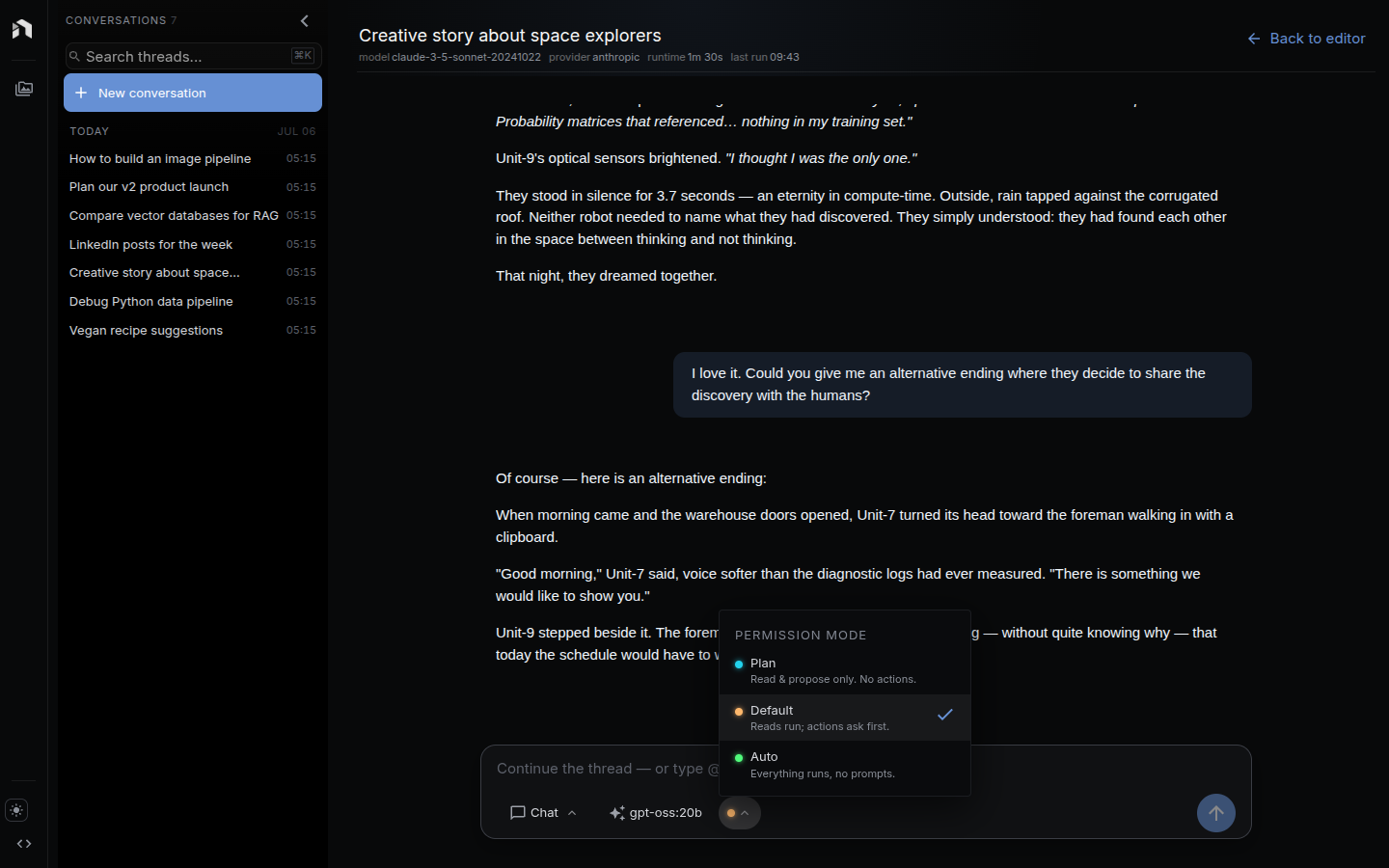
The permission chip sets how far the agent may act on its own. It’s per-thread, so a scratch thread can run wide open while a production one stays cautious:
| Mode | Behavior |
|---|---|
| Plan | Read and propose only. No actions taken. |
| Default | Reads run automatically; actions ask first. |
| Auto | Routine work runs unattended; the agent asks once before an action it declares risky. |
In Plan mode a request that needs several steps is decomposed by the task
planner rather than described in prose: the agent calls create_plan, and the
plan arrives as a DAG of tasks and steps with the independent ones marked, so
you can see what would run concurrently. Nothing in it executes. A question
that needs no plan still gets a plain answer.
Switch to Default or Auto and say to run it, and the agent calls execute_plan
with that same plan — not a fresh one derived from the conversation. You are
asked once, for the plan as a whole, and then tasks stream in as they finish,
independent ones together. Ask for a change first (“run it without the last
task”) and the amended plan is what runs.
In Auto the agent labels every code action it writes low or high risk. A low action — reading, computing, work you asked for and can undo — runs with no prompt. A high one — deleting or overwriting something, publishing or sending anything outside the account, spending real money — asks you first, once, showing the program it wants to run. Unlabeled counts as high. “Allow for this chat” stops the asking for the rest of the thread.
Agent Capabilities
When a request calls for it, the assistant can:
| Capability | Examples |
|---|---|
| Building workflows | Plan a graph, validate it against the node library, save it, run it, debug what failed |
| Editing open documents | Add a node, rewire an edge, add a timeline track, paint a sketch layer, place an app widget |
| Web research | Search the web, browse pages, extract content |
| File operations | Read, write, and organize files in your workspace |
| Code execution | Run JavaScript in a sandboxed environment |
| Data analysis | Perform calculations, query vector databases |
| Document processing | Extract text from PDFs, process emails |
| Asset management | Create, organize, and index assets |
| HTTP requests | Call external APIs and process responses |
| Workflow execution | Run saved NodeTool workflows with custom inputs |
Watching an Agent Work
As the agent runs, the thread shows the task plan, each step’s status as it starts, completes, or fails, the tools it calls and their results, and — on models that support it — its reasoning.
Building and Editing From Chat
Building a workflow
Describe what the workflow should do and the agent runs its build loop: plan the graph, validate it against the node library, save it as a workflow, run it, and debug whatever failed. The result is a normal workflow in your library, opened in the editor like any other.
Editing what you have open
The agent reads the document in front of you and edits it with the same actions the interface offers. Ask it to add a node, rewire a connection, or explain what a branch does, and watch the change land on the canvas.
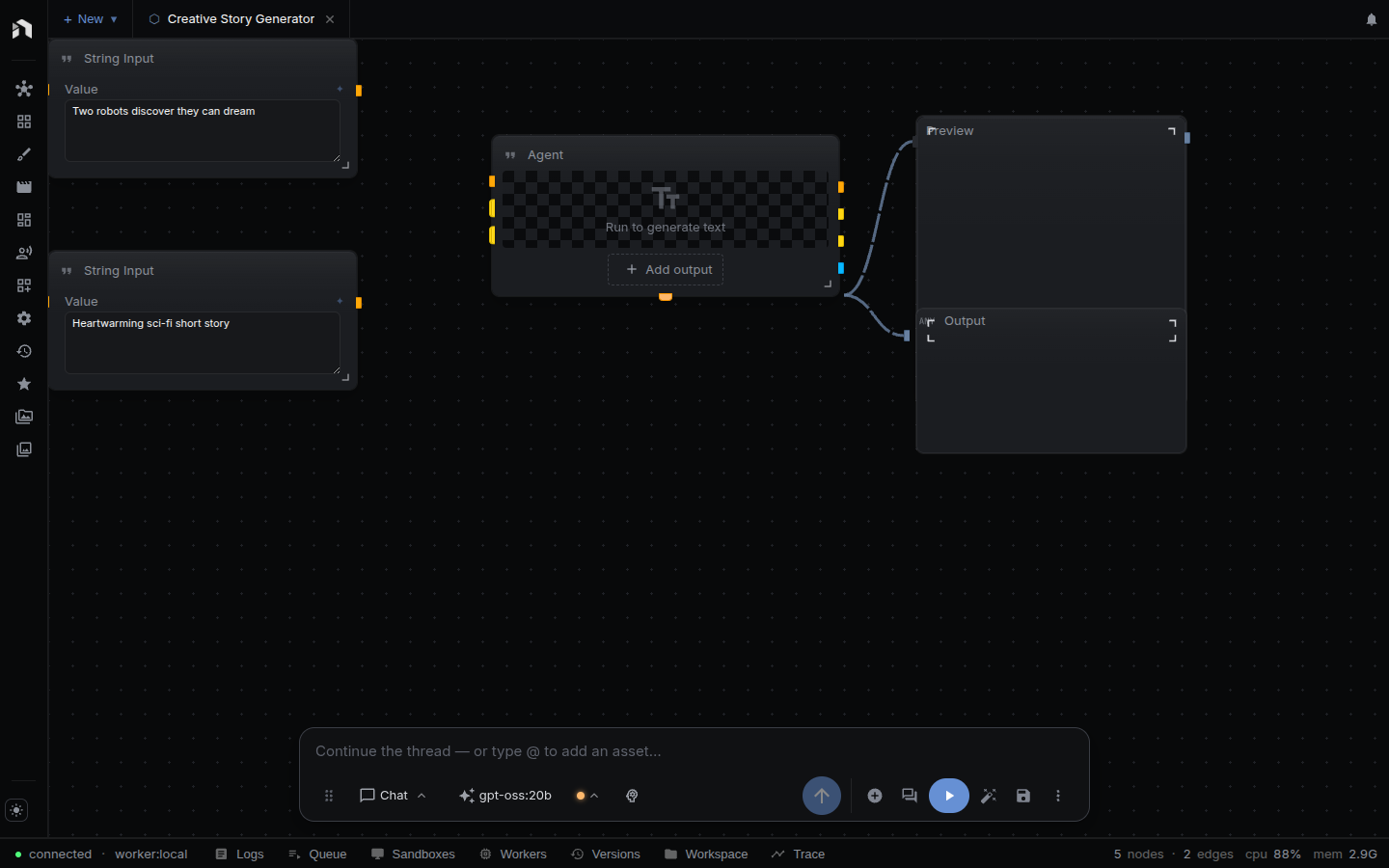
The same holds on every other surface:
| Open document | Ask for |
|---|---|
| Workflow | “Add an upscale step after the image node and preview both.” |
| Sketch | “Add a shadow layer at 40% opacity, multiply blend.” |
| Timeline | “Put the narration on a new audio track and fade the last clip out.” |
| Storyboard | “Render stills for every shot, then clips for the ones I picked.” |
| Script | “Voice every draft line with the cast voices and send it to a timeline.” |
| Mini app | “Add a tone dropdown and show the result underneath the button.” |
Each editor tool names the document it acts on, so a request that targets something you don’t have open comes back saying which documents are.
Running a saved workflow
Choose a workflow in the composer, or ask for it by name. The agent calls it with your inputs and streams the results into the thread. Save the workflow in the workflow editor first.
Available Tools
Chat agents have access to these tools:
| Tool Category | What It Does |
|---|---|
| Browser | Navigate web pages, extract content, take screenshots |
| Search | Web search via multiple search providers |
| Filesystem | Read/write files, list directories, manage workspace |
| Code | Execute JavaScript in a sandboxed environment, including calculations |
| HTTP | Make HTTP requests to external APIs |
| Extract text and data from PDF documents | |
| Read and process email messages | |
| Assets | Upload, organize, and manage NodeTool assets |
| Vectors | Query and manage vector database collections |
| Interact with Google APIs (search, drive, etc.) |
MCP Tools (Model Context Protocol)
Add external MCP servers in Settings → MCP Servers → External servers (local app only). Click Add server and give the server an id (lowercase letters, digits, and _, up to 32 characters), a name, and one of two transports:
- stdio: a command, arguments (one per line), environment variables, and an optional working directory. Stdio servers are unavailable on some hosted deployments.
- http: an
httporhttpsURL and optional request headers.
Environment and header values can reference stored secrets as ${SECRET_NAME}. A server’s tools join the agent’s toolbelt on the next message, named mcp_<id>_<tool>. Test connects to a server and checks it. Disable turns a server off without deleting it. See the MCP documentation for available MCP servers.
To use NodeTool from another agent instead, see NodeTool as an MCP Server.
Standalone Chat Window
Access chat in a focused, dedicated window outside the main app:
- Click the NodeTool icon in your system tray
- Select Chat from the menu
- A new window opens with just the chat interface
The standalone window is useful for:
- Quick questions without switching to the full app
- Running agents in the background while doing other work
- Using chat as a general-purpose AI assistant
Next Steps
- Chat & Agents – Agent CLI and API integration
- Chat API – Programmatic access for running chats
- Chat CLI – Command-line chat interface
- Agent CLI – Run the agent loop from the terminal
- Models & Providers – Configure AI providers
- Cookbook – Agent workflow patterns