
A Mini App is a simple screen in front of a workflow. Instead of a canvas full of connected nodes, the person using it sees a text box, a button, and a result.
Say you built a workflow that turns a product photo into a caption. It has a dozen nodes: the model, the prompt, retries, formatting. You want a coworker to use it, but not to edit it, and not to have to understand it. So you build a Mini App: one field for the photo, one button that says “Write the caption”, and one box where the caption appears. Same workflow underneath, nothing to break.
- Building Mini Apps — eleven app shapes, each built step by step. Start here if you want to make one.
- Mini App Reference — every widget, setting, and field, in tables.
- App Builder — the editor you build the screen in.
- Mini Apps on Mobile — opening and running the same app from a phone.
The words
These five terms cover most of what the rest of these pages say.
| Term | What it means |
|---|---|
| Workflow | The node graph that does the actual work. It already exists before you build an app. |
| Widget | One thing on the app screen: a text box, a button, an image, a slider. |
| Binding | The wiring between a widget and the workflow. “This text box fills the Prompt input.” “This image shows the Result output.” |
| Operation | One workflow the app can run, plus how its inputs and outputs are wired. An app that runs two workflows has two operations. |
| Variable | A value the app remembers between runs — a draft to review, a setting like “always translate to German”. |
Two more you meet in the workflow editor, not the app:
- An Input node is a node in the graph that marks a value coming in from outside. Widgets that the user types into bind to Input nodes.
- An Output node marks a value going out. Widgets that show a result bind to Output nodes.
If a value has no Input node, no widget can change it. If a result has no Output node, no widget can show it. Getting these into the graph is the first step of building any app.
What Mini Apps are good for
A node graph is the right screen for the person who built the pipeline and the wrong one for everyone else. It shows model choices, retry paths, and half-built intermediate steps that someone who just wants a caption doesn’t need and shouldn’t be able to break. A Mini App narrows it to the two or three fields that actually change.
| The situation | What the app does about it |
|---|---|
| A coworker needs to run your workflow but not edit it | They get fields and a Run button. The graph isn’t reachable from the app. |
| The workflow has 40 nodes and 3 things worth changing | Only those 3 get widgets. The rest stays fixed in the graph. |
| A run takes 90 seconds and looks frozen | Add a progress bar and a status line that says what the run is doing right now. |
| The result arrives a word at a time | Display widgets collect what streams in. Text builds up into one block instead of flickering. |
| One screen should drive several workflows | Give the app one operation per workflow. Each gets its own fields, results, and button. |
| Someone must approve a draft before the next step | Step one writes a variable, a widget shows it, a second button runs step two using that variable. |
| Dragging a slider should re-run the workflow | Bind the slider to a setting in the graph and have it re-run when you let go. |
| The same tool is used daily with the same settings | Mark a variable as remembered, and it survives across sessions. |
Don’t build one for a workflow you’ll run once, for a pipeline another program calls (use the Workflow API), or for an open-ended task with no fixed shape (use Chat).
Where apps live
An app is its own thing, not a setting on a workflow. It has its own name, version history, releases, and spending limit — none of which belong on a graph. Opening a workflow never creates an app, and a workflow without an app is just a workflow.
| Where | How to get there |
|---|---|
| Apps panel | Left sidebar → Apps. Every app in the project, plus the New app and Create app from workflow buttons. Right-click a row to rename, duplicate, or delete an app. |
| App tab | Click an app. It opens as a workspace tab. Its document bar switches between Run, Design, and Settings, and its ⋮ menu holds Preview draft. |
| Linked workflows | Linked workflows in the app tab’s ⋮ menu lists the workflows this app runs. Click one to open it as a normal workflow tab. |
| Terminal | nodetool app debug <application_id>. See Checking an app. |
Design is where you place and wire widgets:
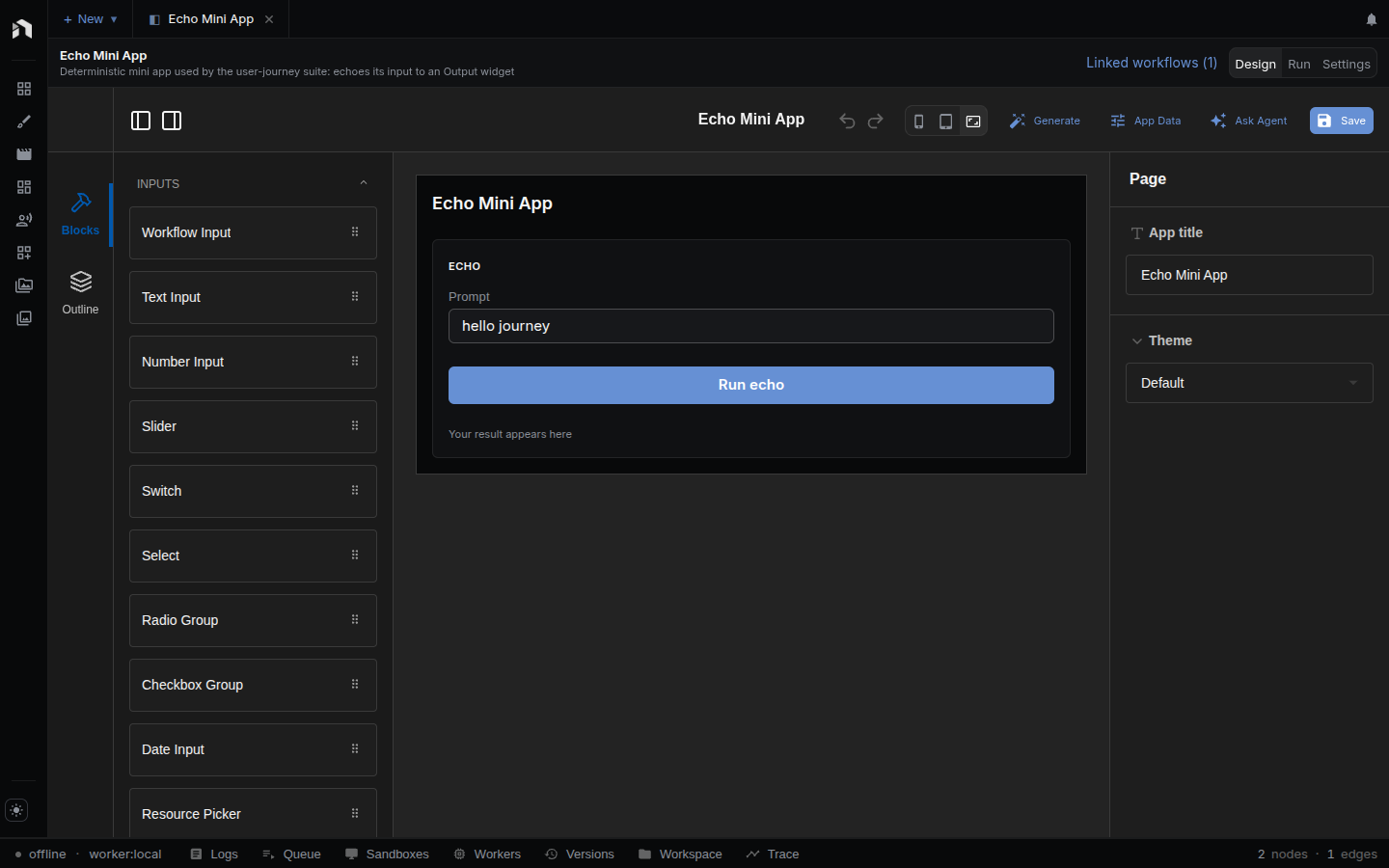
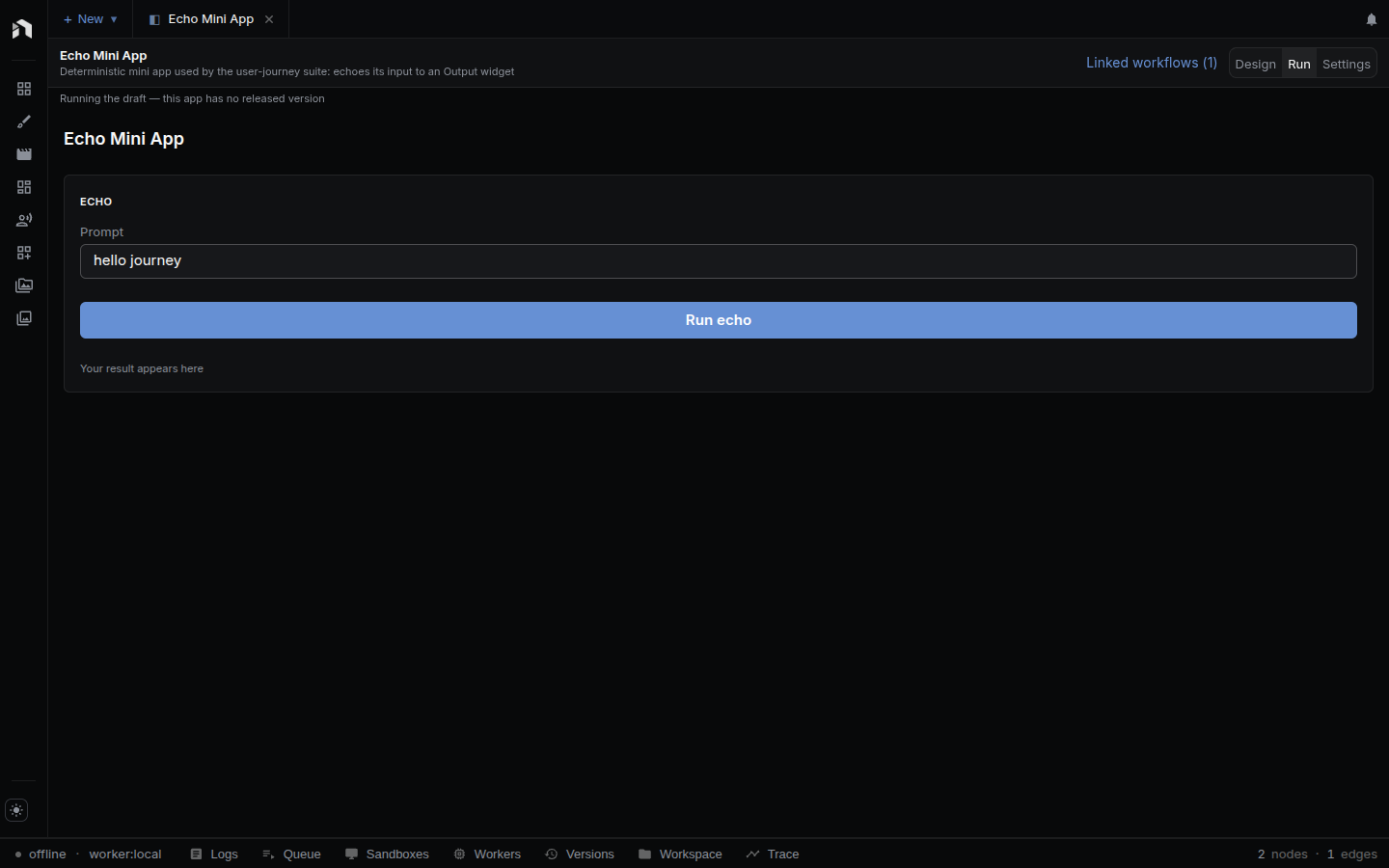
Run is what the person using the app sees: the fields, the button, and the result. Each working instance runs its pinned version. A new default instance uses the release when one exists, or the unpublished draft. Preview draft freezes a separate draft working copy when requested, so you can test edits without changing a released instance. Settings holds publishing, versions, the spend budget, the public link, and recent runs. See Publishing and sharing.
Apps run wherever their workflows run: the desktop app, a server you host, or NodeTool Cloud. On mobile, a published app opens as its own screen.
Making one
- New app starts empty. You add an operation, pick the workflow it runs, and place widgets yourself.
- Create app from workflow builds a starting point for you. You pick a
workflow, and the app gets one operation named
mainbound to it, a Workflow Input widget for everynodetool.input.*node, an Output widget for everynodetool.output.*node and Preview node, a Run button, a Cancel button that shows while a run is going, a Progress widget, and an error alert. If the workflow already carries an older embedded app document, that document is imported instead. This is a copy, made once. From then on the app and the workflow are separate, and editing one doesn’t change the other.
Publishing and sharing
Publish new version (Settings) saves the draft first, then takes a snapshot. The snapshot is the screen, the variables, and the graph of every workflow the app runs, frozen at that moment. It becomes the released version at once, so a published app keeps working the way it did on release day while you keep editing the drafts. Every version is listed with what it may touch (workflow count and resource access). Roll back to version N makes an older version the released one again.
Settings has three more sections:
- Spend budget. A period (per day, per month, or lifetime), a maximum spend in USD, and a maximum number of runs. An empty field means no limit. Runs of the released app are checked against it before they reach a provider, and the section shows what has been used so far.
- Public link. Create public link makes a hidden
/a/<token>URL. Anyone with it can open and run the released version without a NodeTool account. Runs execute on your account and count against the budget. Withdraw link turns it off. Links are served only when the server runs withNODETOOL_ENV=production, as nodetool.ai does, so a local install shows a note instead. A link needs a released version and a budget with at least one finite limit. Apps with script operations or resource bindings cannot be linked, and publishing such a change while a link is live is refused. - Recent invocations. Each run of the released app with its operation, status, version, and cost (marked “est.” until the actual cost is known).
To hand an app to someone else without a link, export a bundle: one JSON file
holding the app and the full graph of every workflow it runs. They import it and
get a working app plus its workflows. Bundles move through the CLI
(nodetool apps export-bundle <id> and nodetool apps import-bundle <file>, see
CLI) and through the
GET /api/applications/:id/export-bundle and
POST /api/applications/import-bundle routes. Inside the file the app refers to
its workflows by a local nickname. Importing swaps those for the real ids of the
workflows it creates. NodeTool ships example apps as bundles. Add one from Start
from an app on the start page, or install it with
POST /api/applications/examples/:slug/install.
How it works
Four pieces. Only one of them computes anything.
App document               (what you build in the editor)
  ui           the layout: which widgets, where, wired to what
  operations   which workflows the app runs, and how they're wired
  variables    values the app remembers
  resources    handles to an asset, timeline, storyboard, or sketch
        │
        │  the wiring is checked against the real graphs
        ▼
Instance state             (what one open copy of the app is holding)
  inputs · outputs · variables · widget state · runs in flight
        │
        │  messages from the run update the state as they arrive
        ▼
Workflow runs              (where all the actual work happens)
The document is configuration, not code. Nothing in it branches, loops, or calls a model — that’s the graph’s job. This is on purpose: logic in a graph can be tested, cached, and read by the agent. Logic hidden in an app screen can’t.
The app document
Everything you build in the editor is saved as one document with these parts:
ui— the layout. Which widgets are on the screen, where, and what each one is wired to.operations— the workflows this app can run. Each operation has a name, what it runs, wiring for each input and output, a rule for what happens when you click Run while it’s already running, and an optional time limit. An operation runs a workflow, or a JS script at a pinned version (see Reference). One app can run several workflows, or the same workflow twice wired differently (translateTitleandtranslateBody).variables— the values the app remembers, each with a type, a starting value, and whether it survives a reload.resources— handles to a real document (an asset, timeline, storyboard, or sketch) that the app is allowed to read or edit.theme— optional. A named page style picked in the editor’s Theme field: Default, Centered (content capped at 720 px), or Card (content in a bordered card, capped at 880 px).
In the editor, the App Data button in the Design header opens a panel where you add and edit operations, variables, and resources by hand. The assistant edits the same lists.
Operations are what make an app more than a form over one graph. A transcription app can run a transcriber, a summarizer, and a translator from one screen.
Bindings
A binding is a short string that says which slot a widget is wired to. You pick these from a menu in the editor; you rarely type them. They look like this:
op:<opId>/in:<nodeId>            an input of a workflow
op:<opId>/out:<nodeId>           an output of a workflow
op:<opId>/prop:<nodeId>#<prop>   a setting on a node, driven by a widget
op:<opId>/exec#<field>           run status: running | progress | error | activity
var:<variableId>                 a value the app remembers
view:<componentId>#<prop>        state that belongs to one widget, never saved
Two details worth knowing:
- Every binding names its operation, so two operations running the same workflow never read each other’s values.
- Bindings point at node ids, not names. Renaming an Input node in the graph editor can’t break an app. Older apps that used names still work — the name is looked up in the live graph, and the editor rewrites it to the id form when it can.
A binding that points at nothing is reported as an error, not quietly ignored.
Both the editor and nodetool app debug will tell you.
What one open app holds
While an app is open it holds a bundle of current values, split into five groups so nothing collides:
| Group | Keyed by | Holds |
|---|---|---|
inputs |
operation + node | What’s currently in each field, and whether the user typed it or it’s still the default. |
outputs |
operation + node | Each result and its status: empty, pending, streaming, done. |
variables |
variable | The values the app remembers. |
view |
widget + property | State belonging to one widget. Never saved. |
invocations |
job id | One entry per run: status, progress, error, and what it’s doing. |
Keying inputs and outputs by operation and node is what lets one app run several workflows without their values landing on top of each other.
The same code updates this state in the browser, in the nodetool app debug
harness, and in the test suites. What the harness reports is what the browser
does.
What happens when you click Run
- The widget fires an action:
run,cancel,setVariable,toggleVariable, or one of the resource actions. Actions are settings the runtime carries out; there’s nowhere to write a statement. - If the operation is already running, its rule decides:
parallelstarts another anyway,replacecancels the one in flight first,queuewaits. - The values are collected. Each input takes its value from wherever it’s wired: the widget (the usual case), a variable, a fixed value, or the currently selected resource.
- The run starts, and every result slot it will fill goes to
pending. - Messages come back from the run and update the screen. Each one is matched to the run that produced it by job id, and anything from a job this app didn’t start is thrown away. That’s what stops a second tab, an overlapping run, or a run launched from a workflow tab from polluting what the app shows.
- Values land in their result slot — and also in a variable, if the operation is wired that way. Streamed text builds up; streamed items collect into a list. Clicking Run again starts fresh instead of appending to the last result.
Saved working state
Opening an app loads its server-owned default instance. Widget inputs, variable state and terminal outputs survive a reload and follow the authenticated account between browsers. Existing local variable caches are imported when the default instance is first created. An existing server instance wins over a browser cache.
Each operation reserves a durable app run before collecting its inputs. The run stores its inputs, outputs, outcome and child generation attachments. It executes the definition pinned by its instance. Revision checks prevent a stale browser or delayed run from overwriting newer working state. A conflict keeps the run’s outputs and asks you to reload the instance.
The instance header offers New, Rename, Duplicate, Delete, and advancement to a newer release. New starts from app defaults. Duplicate copies working values and the frozen definition, reuses media references, and starts with empty history. Each instance opens in its own workspace tab. Editing opens the application editor, while Run returns to a working instance tab.
Run history is scoped to the instance. Selecting a run shows read-only inputs, outputs, stored agent activity, and links to its trace and documents. Document links open the current document. Historical inspection changes no working values and starts no execution. Expired or limited content is labelled. Each run also has View trace and Ask the agent. Ask the agent opens a chat tab titled “Inspect run” with the run id attached, and the first failed span when there is one. Deleting an instance removes its history and attachments while retaining generated library media.
Deployed-app visitors keep local working state. Their server runs retain no visitor inputs or outputs, and they cannot manage owner instances. See App runs for the persistence and API contracts.
Showing that something is happening
Every operation exposes four things a widget can display, so an app over a slow workflow shows more than a spinner:
running— true while a run is in flight.progress— how far along it is.error— what went wrong, if anything.activity— a line of plain text the run writes about itself: the tool an agent is calling, the planning stage, the step it’s on.
If your app wraps an agent, put activity on the screen. Without it the user
stares at a spinner for two minutes with no idea whether anything is happening.
The little logic an app can do
Three things, and the list is short on purpose:
- Show a widget only when something is true (
visibleWhen). - Grey a widget out while something is true (
disabledWhen). - Reformat a value before showing it (
format) — round a number, shorten a string, join a list.
A condition compares one value against one fixed value, using one of nine operators. Formatting runs a value through one of six filters. Anything past that belongs in the graph: compute the value in a node and show that node’s output.
Checking an app
nodetool app debug runs the whole app without a browser. It checks every
binding against the real workflow, fills in the default values, clicks the Run
button (or follows a script you give it), runs the workflow, and reports what
every widget ended up showing. It runs all of the app’s operations, not just the
first.
npm run dev:nodetool -- app debug <application_id>
npm run dev:nodetool -- app debug my-app.json      # a bundle file
npm run dev:nodetool -- app debug <id> --no-run    # check the wiring, don't run
npm run dev:nodetool -- app debug <id> --json      # full report
npm run dev:nodetool -- app debug <id> --timeout 60000 --out ./app-report
The command exits 0 when the verdict is ok and 1 otherwise. --timeout is a
per-run ceiling in milliseconds. An operation’s own time limit also applies, and
the shorter one wins. --out sets the report folder. The target can also be a
workflow id or file that carries an older embedded app document.
It catches the mistakes a workflow-only test can’t: a widget wired to an input or output that doesn’t exist, an app with no way to start a run, a display widget that never receives anything, a result wired to a variable that was never declared, a button pointing at an operation the app doesn’t have, and a run that hit its time limit.
It also warns about gaps that still run: a Run button with no disabledWhen on
the running state, an input with no default, no widget showing an operation’s
progress or error, an Output node no widget displays, and an operation no event
runs.
It follows your conditions too: a widget hidden or disabled by visibleWhen or
disabledWhen can’t be clicked, so a script that tries reports the condition
that blocked it, and a Run button no state ever makes visible is an error. A
widget with a format template is reported as the template renders it.
Resources work too, from a collection you seed. Give the run the items a
picker, gallery, or scene list would show, and an input that comes from that
resource is sent, a create/update/delete button changes the collection,
and the report lists what it holds at the end. A run whose input reads a
collection nothing seeded fails and tells you how to seed it.
npm run dev:nodetool -- app debug <id> \
  --interact '[{"seedResource":{"id":"boards","items":[{"id":"b1","name":"Opening"}]}},{"click":"Run"}]'
npm run dev:nodetool -- app debug <id> --params '{"resource:boards":[{"id":"b1"}]}'
What it can’t check: how the app looks — layout, styling, focus — and your
stored resources, since the run reads the seeded collection rather than the
database, and has no editor for openResource to open.
Building an app from a prompt
nodetool app build writes the app for you and checks it with the same
harness. It plans one workflow per operation, places and wires the widgets,
checks the wiring, replays every interaction, and asks a judge model whether each
interaction did what was asked. It needs a provider and model.
npm run dev:nodetool -- app build "an app that drafts a note from a prompt" -p anthropic -m claude-sonnet-5
npm run dev:nodetool -- app build spec.json -p openai -m gpt-5.4-mini --no-judge
It writes an ApplicationBundle and a build report, and exits 0 only when the
verdict is ok. The flags (--workflow, --max-repairs, --cost-cap,
--judge-model, --watch) are in
the harness reference.
To debug the workflow itself, nodetool validate is the quick check and
nodetool debug is the full run. See Workflow Debugging.
Related
- Building Mini Apps — recipes, step by step
- Mini App Reference — widgets, bindings, schema
- App Builder — the editor
- Workflow Editor — building the graphs underneath
- Key Concepts — how workflows, assets, and apps fit together